Theme Customization

Customize your layout.
Layout Mode
Menu Mode
Menu Theme

Market Brew Customer Manual

A complete guide to Market Brew workflows, including Site Architecture Realignment, Answers, Ask, Listen, Visibility Launchpad, Content Booster, Ranking Sensors, and crew administration.

  1. The Market Brew System
  2. Brew And Full Site Intelligence (FSI)
  3. Mission Control
  4. See Structure: Site Architecture Realignment
  5. Search Engine Models
  6. Flight Plans
  7. Ranking Sensors
  8. Ranking Factors
  9. Data Discovery
  10. Testing Changes With Ranking Sensors
  11. Market Brew Rules
  12. Reporting
  13. Hear Intent: Signals And Opportunity Discovery
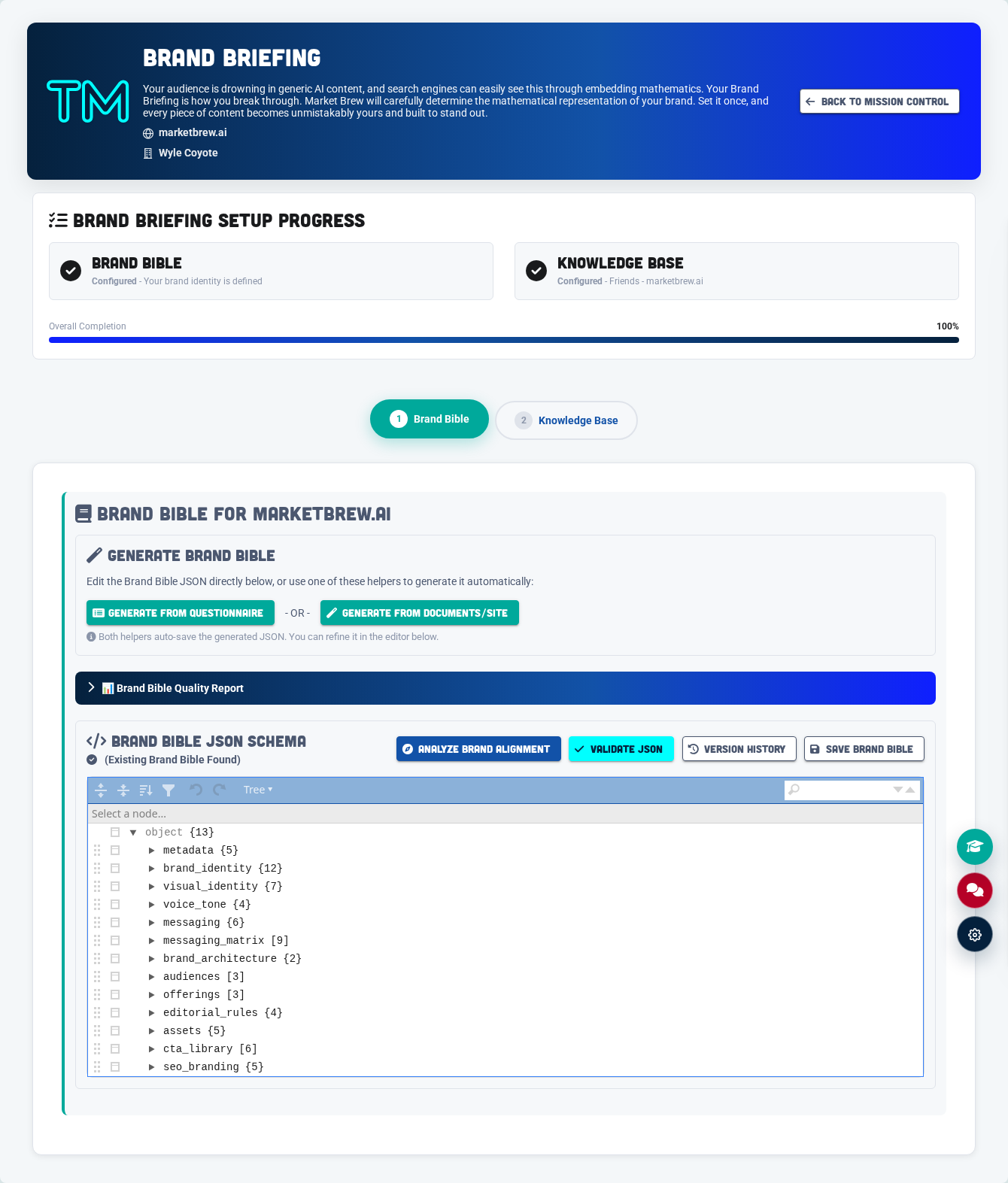
  14. Brand Briefing And Knowledge Base
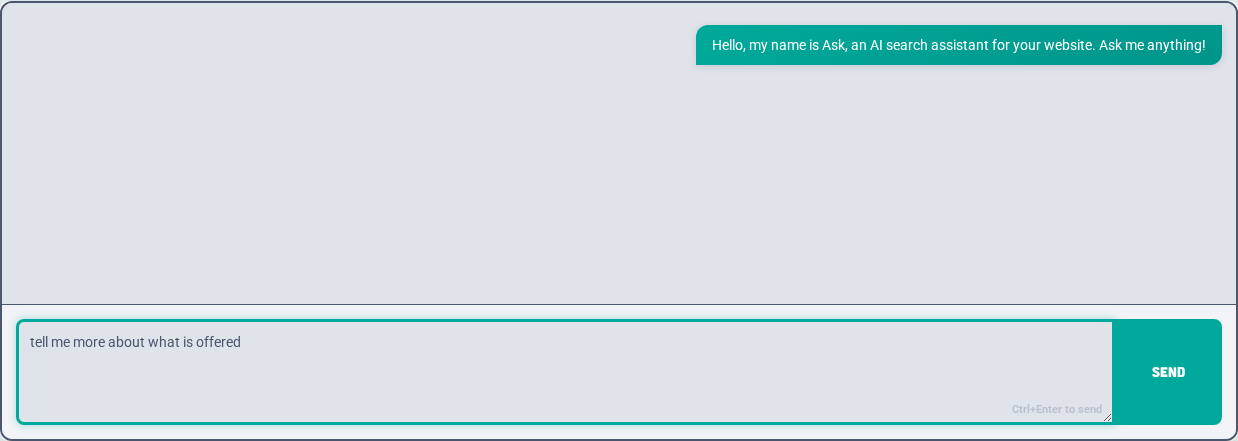
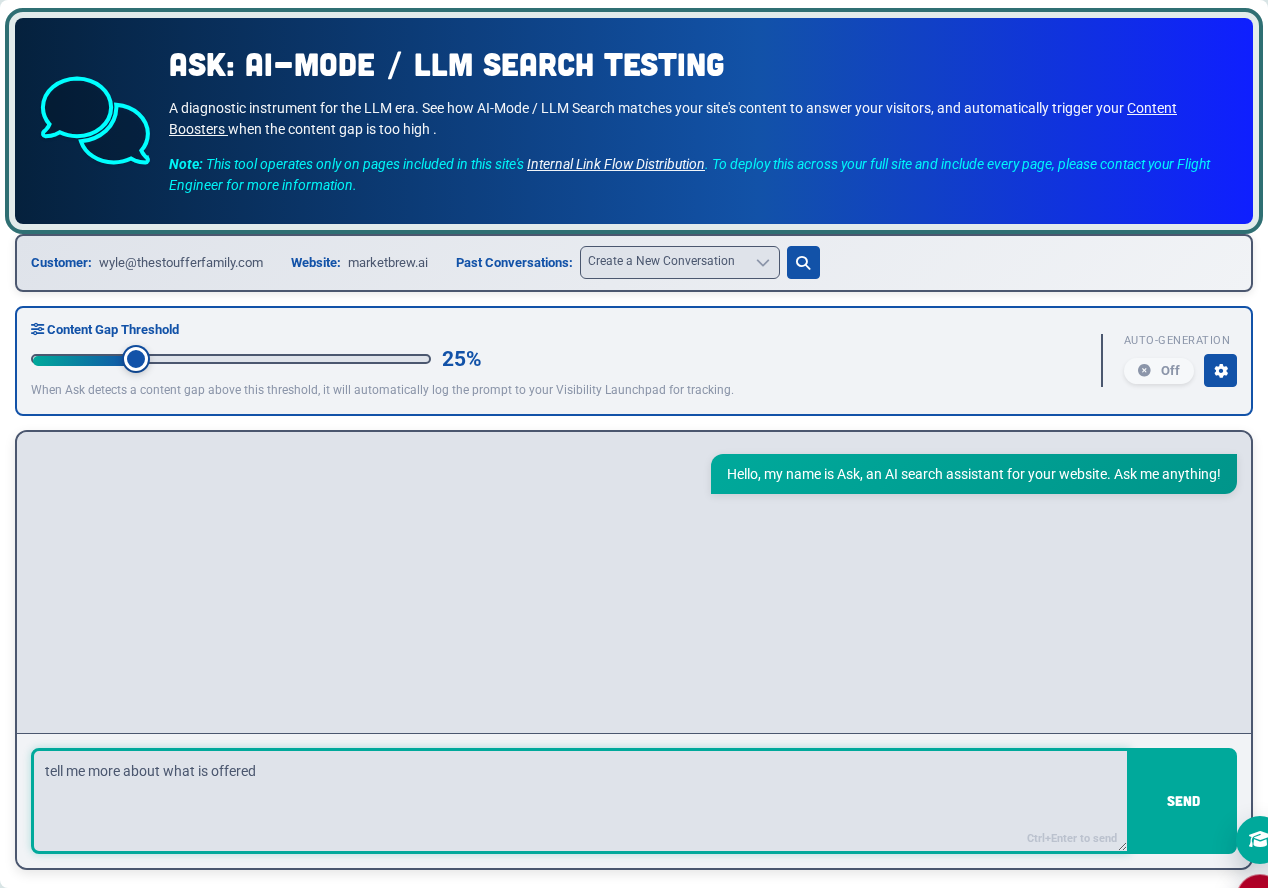
  15. Ask
  16. Listen
  17. Keyword Fueler
  18. Bridge
  19. Visibility Launchpad
  20. Speak Content: Content Action And Optimization
  21. Content Booster
  22. AI + Content Dashboard And Current-Content Tools
  23. Orbital Drift Strategy
  24. Flight Director
  25. Administration And Reference
  26. Crew Settings
  27. Crew Holds
  28. Email Notifications
  29. Troubleshooting
Market Brew System

The Market Brew System

Market Brew is an AI visibility modeling system that helps brands see structure, hear intent, and speak through content that can be selected by search and AI systems.
The Site Architecture Realignment card shows the structure-first workflow.

The Site Architecture Realignment area is for improving how the site is modeled structurally. It connects Ranking Sensors, Flight Plans, and Top Tasks so recurring issues can be found across templates instead of treated as isolated page problems.

Use this area when rankings are limited by site architecture, internal linking, crawl behavior, page templates, or modeled ranking-factor gaps. The goal is to identify the structural pattern, fix it once, and let the improvement apply across the affected section of the site.

Market Brew models the signals that determine how brands are interpreted, retrieved, and selected across search engines, LLMs, and AI-driven discovery.

The Answers card shows the signal, opportunity, and content workflow.

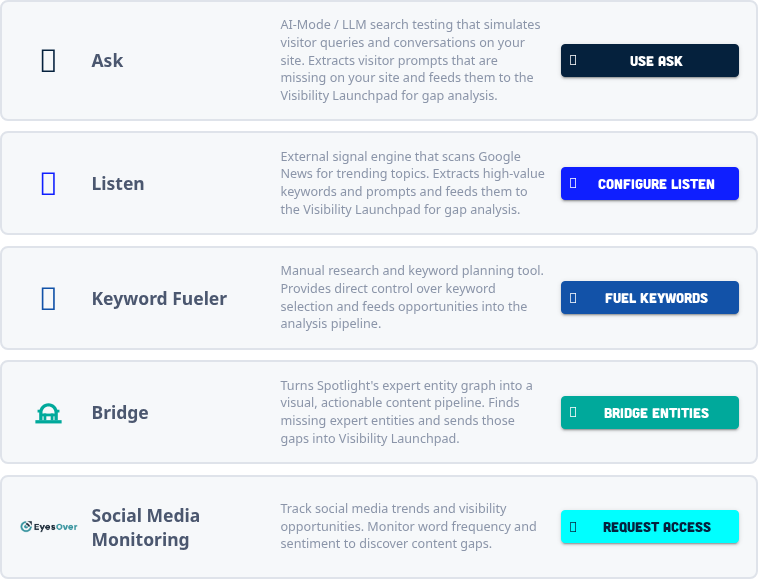
The Answers area organizes the workflow for finding what audiences are asking and turning that demand into useful content action. It connects Ask, Listen, Keyword Fueler, Visibility Launchpad, and Content Booster into one pipeline.

Use this area when the account needs stronger coverage for questions, prompts, emerging topics, or gaps in existing pages. The workflow starts with signals, prioritizes them in Launchpad, and then sends qualified opportunities into Content Booster.

Use this manual as the operating guide for the system: start with Mission Control, understand the two operating tracks, then move through the screens that collect signals, prioritize opportunities, and turn those opportunities into measured action.

See, Hear, Speak

  • See Structure: model architecture, templates, links, crawl behavior, and ranking environments.
  • Hear Intent: capture real prompts, external trends, keyword demand, and entity signals.
  • Speak Content: improve existing pages or create answer assets that reinforce verified intent.

From website crawl to predictive SEO — a fully connected ecosystem.

Overview

The Market Brew System is a unified framework that connects every stage of your SEO lifecycle — from discovery to creation to optimization.

It begins the moment your site is crawled and continues through continuous signal analysis, opportunity detection, content generation, and predictive ranking simulation.

Market Brew is not just an SEO platform — it’s a living search engine model that mirrors how algorithms evaluate your website.

Through this model, Market Brew can identify what’s missing, predict what will rank, and even generate the content that fills the gaps.

System Flow

Website Crawl

Every customer journey begins with a website crawl.

Market Brew maps your site’s pages, structure, and link graph to establish a baseline search model — essentially building a virtual copy of how Google views your website.

This crawl populates the foundation for:

  • Internal linking data
  • Content embeddings
  • Template recognition
  • Ranking Sensors

Once this model is ready, Mission Control modules activate automatically.

🔍 “Wait for Website Crawl” means your simulation is preparing its first version of the site model.

Signal Generation (Ask / Listen / Keyword Fueling)

Once your site is crawled, Market Brew begins collecting signals — the core of your AI visibility modeling feedback loop.

Together, Ask, Listen, and Keyword Fueling form your Signals — the system’s evolving understanding of what users (and search engines) care about most.

Module Description
Ask Your internal AI search assistant that surfaces questions, missing answers, and underperforming topics from your own site.
Listen Continuously monitors external news and trends, identifying rising search topics before competitors do.
Keyword Fueling Bridges PPC and SEO by pulling in commercial intent data, high-performing ad phrases, and trending query patterns.
Bridge Turns expert entity gaps into content opportunities.

Each of these signals feeds directly into Visibility Launchpad, where opportunities are scored and prioritized.

🧠 This is where the Market Brew model starts to “think.” It observes, compares, and learns what matters next for your niche.

Visibility Launchpad

All signals converge inside Visibility Launchpad — the radar system for your organic strategy.

It ranks opportunities based on search volume, competitive density, semantic similarity, and topical authority, using embeddings from your website’s crawl.

Launchpad Inputs:

  • From Ask → Internal search demand
  • From Listen → External trend detection
  • From Keyword Fueling → PPC and commercial data
  • From Ranking Sensor signals → Template relevance feedback
  • From Bridge → Find expert entity gaps.

Launchpad Outputs:

  • Prioritized list of SEO opportunities
  • Gap detection reports
  • One-click paths to Content Booster

🚀 Launchpad tells you what to build next — Content Booster builds it.

Content Creation (Content Booster)

Content Booster converts your Launchpad insights into optimized, on-brand content. It applies your Ranking Sensor logic (if available) to ensure every page aligns with your top-performing templates.

Key Capabilities:

  • Generate long-form or short-form content from any opportunity
  • Use your site context, schema, and FAQ generation
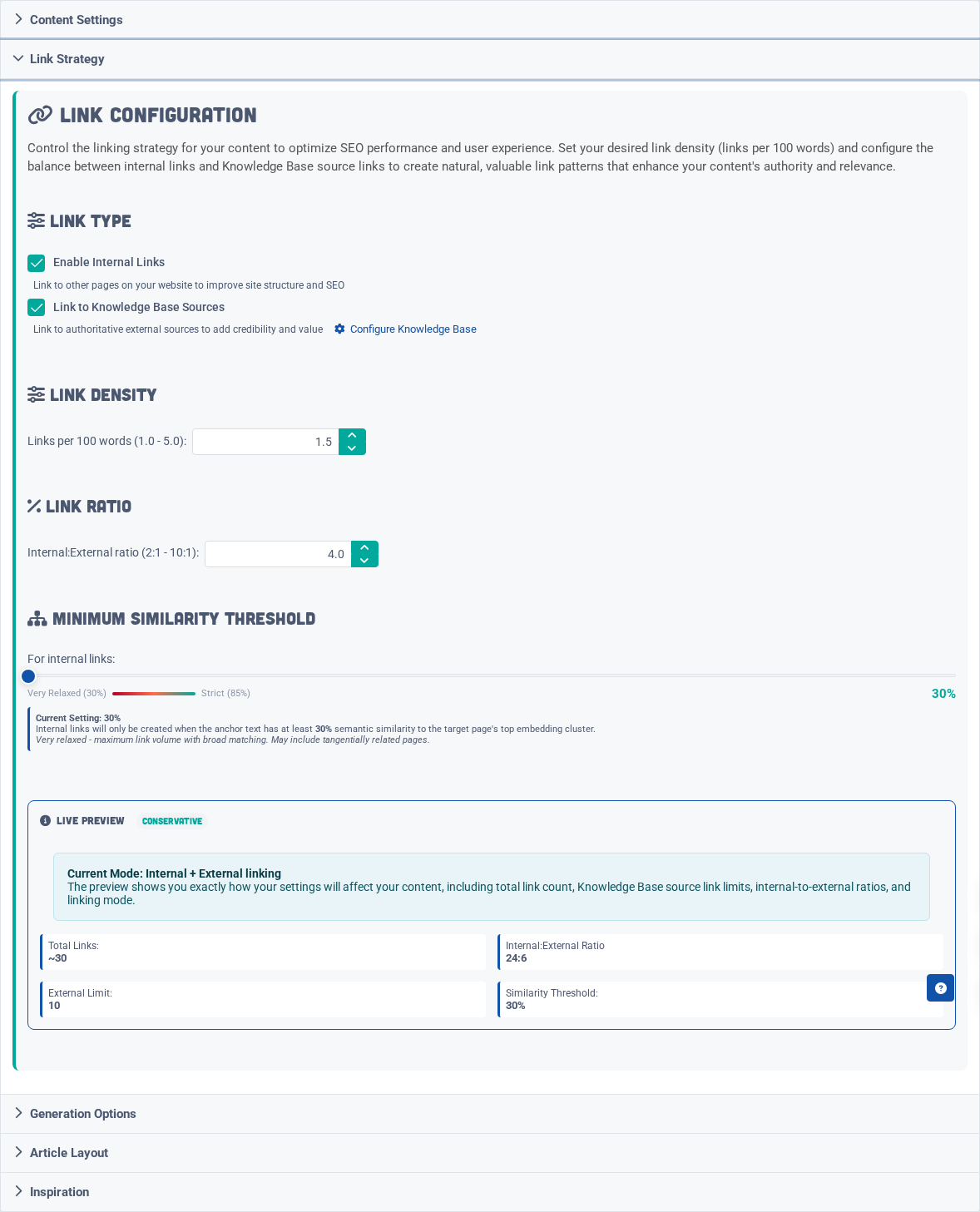
  • Control tone, intent, and linking density
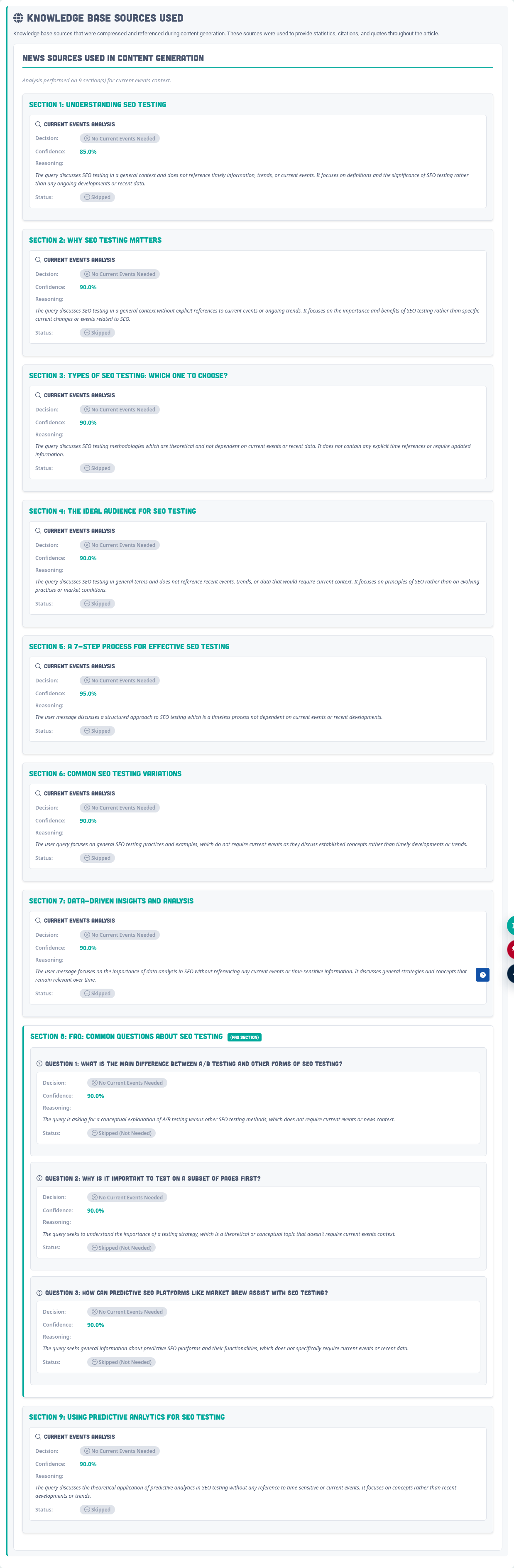
  • Use Knowledge Bases to link to authoritative sources
  • Auto-generate new pages when gap thresholds are exceeded

🧩 Answers customers operate primarily here — using AI-powered content generation and guided opportunities to grow their sites organically.

Testing And Optimization

For Answers Pipeline customers, Market Brew opens its full modeling environment — giving complete visibility into the “why” behind rankings and the ability to test new strategies before publishing.

This layer is where algorithmic modeling meets human strategy.

Module Function
Ranking Sensor Reveals how every ranking factor (content, link flow, DOM structure, schema) impacts visibility.
SEO Forecasting Predicts ranking outcomes and traffic changes for future content or site updates.
Optimization Tasks Generates prioritized, data-backed actions to realign templates, internal links, and content patterns.
AI Mode Visualizer Displays how your content embeddings align with Google’s AI Mode.
AI Overviews Visualizer Shows how your pages appear in Google’s AI Overviews and how to improve inclusion.
Link Flow Finder Maps internal link equity and identifies bottlenecks in your site structure.
Link Spotter Finds contextually relevant internal-link opportunities.
Spotlight Visualizer Identifies entity coverage, topic clusters, and expert-topic gaps.
Market Brew Tools A suite of advanced utilities for technical SEO teams and data analysts.

All of these tools draw data directly from Ranking Sensors, ensuring every optimization is grounded in real modeled behavior — not guesswork.

How It All Works Together

Layer Modules Purpose
Foundation Website Crawl Build a search engine model of your site.
Signals Ask, Listen, Keyword Fueling Gather topics and intents from both your content and the web.
Analysis Visibility Launchpad Evaluate where you’re strong or weak.
Execution Content Booster Generate optimized content and close the gaps.
Optimization (Answers Pipeline) Ranking Sensor, Forecasting, Optimization Tasks, Visualizers Test, refine, and predict results across all ranking factors.

💡 In essence: The crawl powers the signals. The signals feed the Launchpad. The Launchpad fuels the Booster. The Booster feeds new content back into the crawl. Answers Pipeline keeps the whole system calibrated.

Market Brew System

Brew And Full Site Intelligence (FSI)

Brew and FSI are separate Market Brew environments. If an account includes FSI access, Brand Bible and Answers pipeline setup should usually live in FSI.

Market Brew customers may use one or two Market Brew environments, depending on their package and implementation.

EnvironmentURLPrimary purpose
Brewbrew.marketbrew.aiDeep analysis of a statistical sampling of the site through Ranking Sensors, Flight Plans, optimization tasks, calibrated search engine modeling, and structural SEO analysis.
Full Site Intelligence (FSI)ask.marketbrew.aiBreadth crawling and full-site coverage for the Ask widget, Content Booster internal links, and Visibility Launchpad gap calculations.

FSI may also be called the Ask Side in customer conversations. This is different from the Ask Signal, which is the Answers workflow signal source that captures audience questions and prompts.

Brand Bible And Answers Pipeline Setup

Brew and FSI do not automatically share configuration. Brand Bible, Brand Briefing, Knowledge Base, signal sources, Visibility Launchpad settings, and Answers pipeline setup should be maintained in the environment that runs those workflows for the customer.

If your account includes FSI access, use FSI as the primary home for Brand Bible and Answers pipeline work. Use Brew for deep Ranking Sensor, Flight Plan, and optimization-task analysis unless your Market Brew team has explicitly configured an Answers workflow there as well.

Brand Bible updates

If your organization uses both Brew and FSI, updating Brand Bible content in one environment does not automatically update the other. Keep the active Brand Bible in the environment where your Answers pipeline and Content Booster workflows are running.

Mission Control

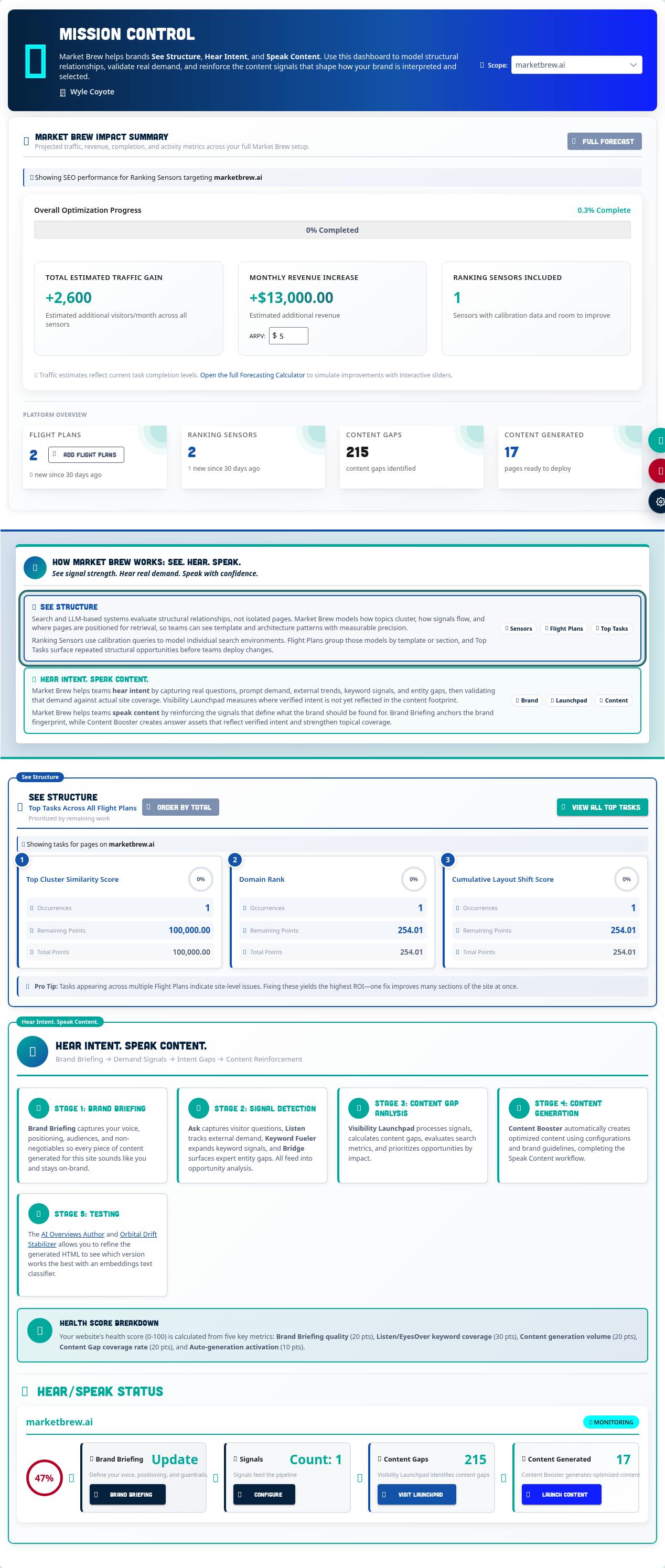
Mission Control

Mission Control is the first product screen because it orients users around the two Market Brew operating tracks: Site Architecture Realignment and Answers.

Brew and FSI environment note

Brew on brew.marketbrew.ai and FSI on ask.marketbrew.ai are separate environments. If the account includes FSI access, Brand Bible and Answers pipeline setup usually belongs in FSI.

The Site Architecture Realignment card shows the structure-first workflow.

The Site Architecture Realignment area is for improving how the site is modeled structurally. It connects Ranking Sensors, Flight Plans, and Top Tasks so recurring issues can be found across templates instead of treated as isolated page problems.

Use this area when rankings are limited by site architecture, internal linking, crawl behavior, page templates, or modeled ranking-factor gaps. The goal is to identify the structural pattern, fix it once, and let the improvement apply across the affected section of the site.

Mission Control is the orientation layer for Market Brew. It is intentionally organized around two complementary strategies: Site Architecture Realignment and Answers.

The Answers card shows the signal, opportunity, and content workflow.

The Answers area organizes the workflow for finding what audiences are asking and turning that demand into useful content action. It connects Ask, Listen, Keyword Fueler, Visibility Launchpad, and Content Booster into one pipeline.

Use this area when the account needs stronger coverage for questions, prompts, emerging topics, or gaps in existing pages. The workflow starts with signals, prioritizes them in Launchpad, and then sends qualified opportunities into Content Booster.

  • Site Architecture Realignment uses Ranking Sensors, Flight Plans, and Top Tasks to identify structural fixes that repeat across layouts, templates, and sections.
  • Answers uses Brand Briefing, Knowledge Base, signal sources, Visibility Launchpad, Content Booster, and testing tools to improve selection probability for real questions and prompts.
Do not treat Mission Control as a generic funnel. It is the decision point for whether the next move belongs to structure, intent/content, or both.

Overview

Mission Control is the central command center for your AI visibility modeling system — a unified dashboard that monitors signals, identifies opportunities, and triggers automated content creation through Market Brew’s predictive search engine model.

Mission Control brings together five integrated tools:

  1. Ask – captures internal audience questions and AI-mode search prompts.
  2. Listen – monitors external news and competitive signals.
  3. Keyword Fueling – enables manual keyword research and targeting.
  4. Bridge – captures what the site's content graph is missing
  5. Visibility Launchpad – converts signals into ranked content opportunities.
  6. Content Booster – generates optimized, validated content automatically.

Together, these modules create a closed-loop system that continuously detects, generates, and validates — keeping your website optimized in real time.

Signal Sources connects Ask, Listen, Keyword Fueler, Bridge, and social inputs to Launchpad.

Signal Sources controls which discovery engines feed Visibility Launchpad. Ask contributes internal questions, Listen contributes external activity, Keyword Fueler contributes demand signals, and Bridge contributes entity-driven opportunities.

Keep the enabled sources aligned with the account strategy. A content-heavy account may rely on Ask and Content Booster signals, while a trend-sensitive account may need Listen and Keyword Fueler to surface new opportunities more quickly.

Understanding the Mission Control Funnel

Each site within Mission Control displays a three-stage funnel representing your AI visibility modeling workflow:

Stage Description
Signals (Ask + Listen + Keyword Fueling) Collects internal and external data sources to understand search demand and topic gaps.
Opportunities (Visibility Launchpad) Analyzes those signals to find areas of low similarity or missing topical coverage.
Content (Content Booster) Generates and validates optimized pages to fill those opportunities.

Each stage displays a live count of signals, opportunities, and boosters for the selected website, updating automatically as your model evolves.

Health Score

Every website in Mission Control includes a Health Score, reflecting the current strength of your AI visibility modeling cycle.

Scores are calculated based on:

Component Weight
Signal Coverage (Ask + Listen + Keyword Fueling activity) 40 points
Content Generation (number of published Boosters) 30 points
Opportunity Coverage (Launchpad completion rate) 20 points
Auto-Generation Activation (active automation settings) 10 points

A strong Health Score (80–100) indicates balanced signal intake, ongoing content generation, and a healthy level of automation.

See Structure

See Structure: Site Architecture Realignment

Use Site Architecture Realignment to model structure, templates, internal links, crawl behavior, and repeated ranking patterns before making broad site changes.

The Site Architecture Realignment card shows the structure-first workflow.

The Site Architecture Realignment area is for improving how the site is modeled structurally. It connects Ranking Sensors, Flight Plans, and Top Tasks so recurring issues can be found across templates instead of treated as isolated page problems.

Use this area when rankings are limited by site architecture, internal linking, crawl behavior, page templates, or modeled ranking-factor gaps. The goal is to identify the structural pattern, fix it once, and let the improvement apply across the affected section of the site.

Site Architecture Realignment is the structure-first side of Market Brew. It models how search systems evaluate templates, internal links, crawl behavior, authority flow, page layout, and repeated optimization patterns.

Top Tasks exposes repeated structural recommendations across Flight Plans.

Top Tasks collects recurring recommendations across Ranking Sensors and Flight Plans. It helps identify the work most likely to improve modeled performance across a site section.

Use Top Tasks to find patterns before assigning work. A recommendation that appears across multiple sensors usually deserves more attention than an isolated issue on a single page.

Use this track when the question is not “what page should we write?” but “what structural pattern is preventing many pages from becoming eligible or competitive?”

  • Ranking Sensors calibrate digital twins of real search environments.
  • Flight Plans group sensors so repeated template and section-level issues rise above keyword noise.
  • Top Tasks summarize the repeated structural work that should be prioritized first.

See Structure: Site Architecture Realignment connects the relevant Market Brew screens into a practical workflow. Use this section to understand what the feature is responsible for, what inputs it depends on, and what output or recommendation it produces.

The Site Architecture Realignment card shows the structure-first workflow. Top Tasks exposes repeated structural recommendations across Flight Plans. These areas show the controls and data that drive the feature. Review the settings, status, and results in context before deciding whether to analyze, prioritize, generate, or refine the next item.

Most workflows depend on the selected crew and website context. Confirm that context first, then use the Explore buttons to open the related Market Brew screen and continue from the same operational area described in the manual.

Before making changes, compare the screen against the account strategy. For structural workflows, look for repeated patterns across Ranking Sensors, Flight Plans, and Top Tasks. For the Answers workflow, look for brand context, signal sources, Launchpad priority, and whether existing content should be improved before creating a new asset. For administration screens, verify that normal crew-facing tabs are used and that admin-only controls are not part of routine customer instructions.

See Structure

Search Engine Models

Search engine models are calibrated replicas of target environments that let teams test why rankings change before committing site work.

Ranking Sensors show calibrated model quality and access to model data.

Ranking Sensors are Market Brew's calibrated search engine models. Each sensor represents a target search environment and gives the system a controlled way to compare the target site against outperforming pages.

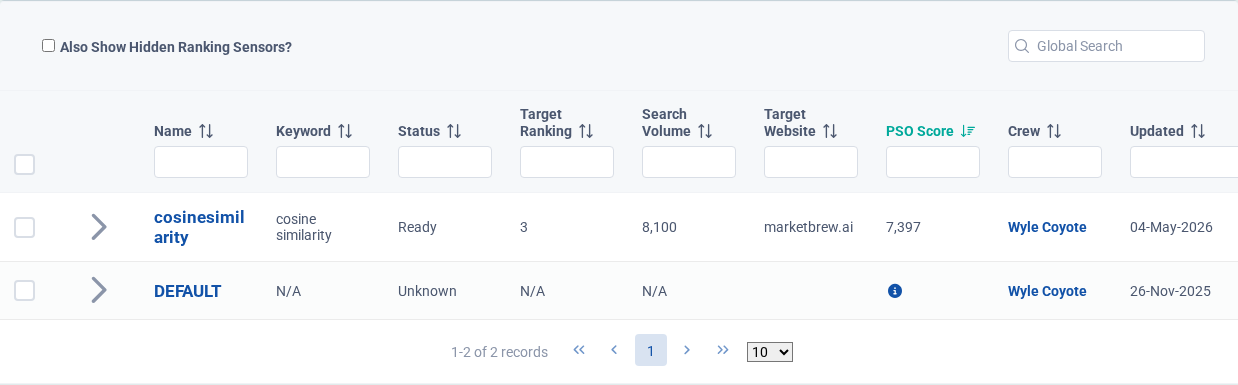
Use the listing to monitor model quality, crawl state, calibration state, and available actions. A well-maintained set of Ranking Sensors gives every downstream task better context because recommendations are based on the modeled ranking environment.

Search engine modeling is the foundation of Site Architecture Realignment. Market Brew calibrates a model against a target search environment so structural changes can be tested before they are implemented.

Auto setup helps select representative ranking environments from licensed-site data.

Auto setup is the fastest way to create Ranking Sensors from licensed-site data. It helps identify candidate pages and keywords so the model can begin with practical, account-specific inputs.

Use auto setup when the site has enough crawl and keyword context for Market Brew to suggest a useful starting set. After setup, review the resulting sensors and group related ones into Flight Plans so structural patterns are easier to see.

Market Brew is one of the most sophisticated modeling tools for SEO.

Market Brew search engine modeling technology allows users to define, create, and deploy statistical replicas of any search engine environment.

It does this by starting with a “generic” search engine model, complete with all the modern families of algorithms, representing everything from on-page to off-page ranking factors. Each part of the search engine model’s biases/weights are then finely tuned by an artificial intelligence process called Particle Swarm Optimization.

At the conclusion of this A.I. process, the “generic” search engine model has been transformed into a very useful and highly calibrated replica of the real thing.

➢ Users deploy website changes in the model and predict how ranking results will be affected when those changes are live.

➢ Users track and characterize algorithmic updates for any search engine by comparing bias/weight settings on each model.

Users can then deploy their changes on the search engine models in order to predict how the target search engine environment (TSEE) will react when those changes are introduced.

As a result, users can also copy these biases/weights from their production search engine model to various testing search engine models, in order to conduct A/B testing prior to the production deployment of those changes.

Search Engine Models connects the relevant Market Brew screens into a practical workflow. Use this section to understand what the feature is responsible for, what inputs it depends on, and what output or recommendation it produces.

Ranking Sensors show calibrated model quality and access to model data. Auto setup helps select representative ranking environments from licensed-site data. These areas show the controls and data that drive the feature. Review the settings, status, and results in context before deciding whether to analyze, prioritize, generate, or refine the next item.

Most workflows depend on the selected crew and website context. Confirm that context first, then use the Explore buttons to open the related Market Brew screen and continue from the same operational area described in the manual.

See Structure

Flight Plans

Flight Plans group Ranking Sensors around layouts, templates, or strategic themes so repeated structural issues rise above individual keyword noise.

Flight Plans organize Ranking Sensors into repeatable template or strategy groups.

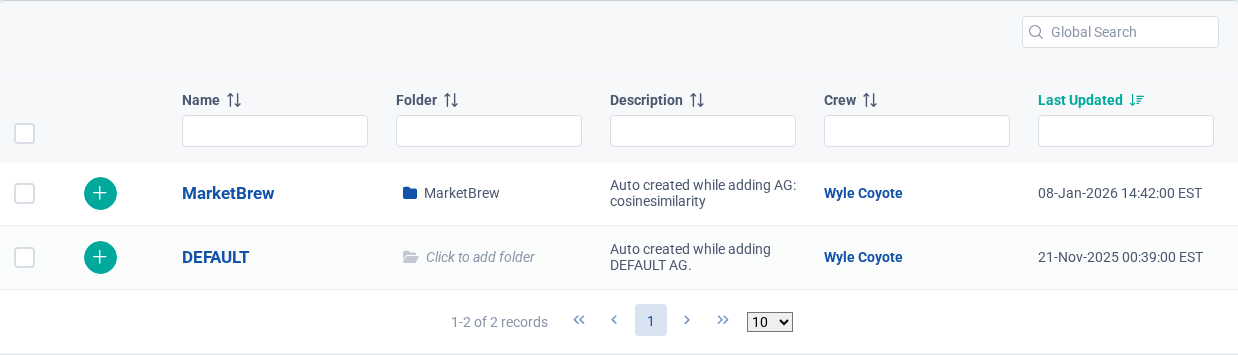
Flight Plans organize related Ranking Sensors into a repeatable structure workflow. They are most useful when several sensors represent the same template, site area, or strategic theme.

Use the Flight Plan list to open grouped work, review progress, and keep related structural recommendations together. This prevents teams from chasing one-off page fixes when the real issue is shared across a layout.

Use Flight Plans when several pages share a template, layout, section, or strategic theme. A single sensor can be noisy; a Flight Plan shows the repeated patterns that matter across a group.

The Flight Plan wizard groups shared layouts into reusable structure work.

The Flight Plan wizard groups Ranking Sensors around a shared layout, template, site section, or strategy. This makes it easier to find repeated problems that affect many pages.

Use Flight Plans to turn individual Ranking Sensor findings into a broader work plan. A blog template, product category, or location-page layout should usually be evaluated through multiple sensors so common issues can be prioritized.

Market Brew Flight Plans enables Crew to combine the guidance from multiple Ranking Sensors to reveal scalable lessons that can be applied to the underlying templates / layout of that group.

For instance, if a site has a blog section, then a Flight Plan could be created to understand what realignment needs to occur for the blog templates.

💡 Pro Tip: Add a minimum of 3-5 Ranking Sensors that all use the same template / layout. Each Ranking Sensor should be a different page / keyword combination.

Parent Crew can assign the following to a Flight Plan:

  1. Ranking Sensor - each Flight Plan gives access to a list of Ranking Sensors to its Crew Members. When a child crew account logs in and views their list of Ranking Sensors, this will be the list of Ranking Sensors from all of their assigned Flight Plans.
  2. Crew Members – can be assigned to multiple Flight Plans, and can be assigned to one or more Roles. There is a special type of Role called Mission Director which is assigned to a Flight Plan, and has admin privileges for that Flight Plan (they can add/edit/remove Ranking Sensors/Crew Members)

Flight Plan Setup Wizard

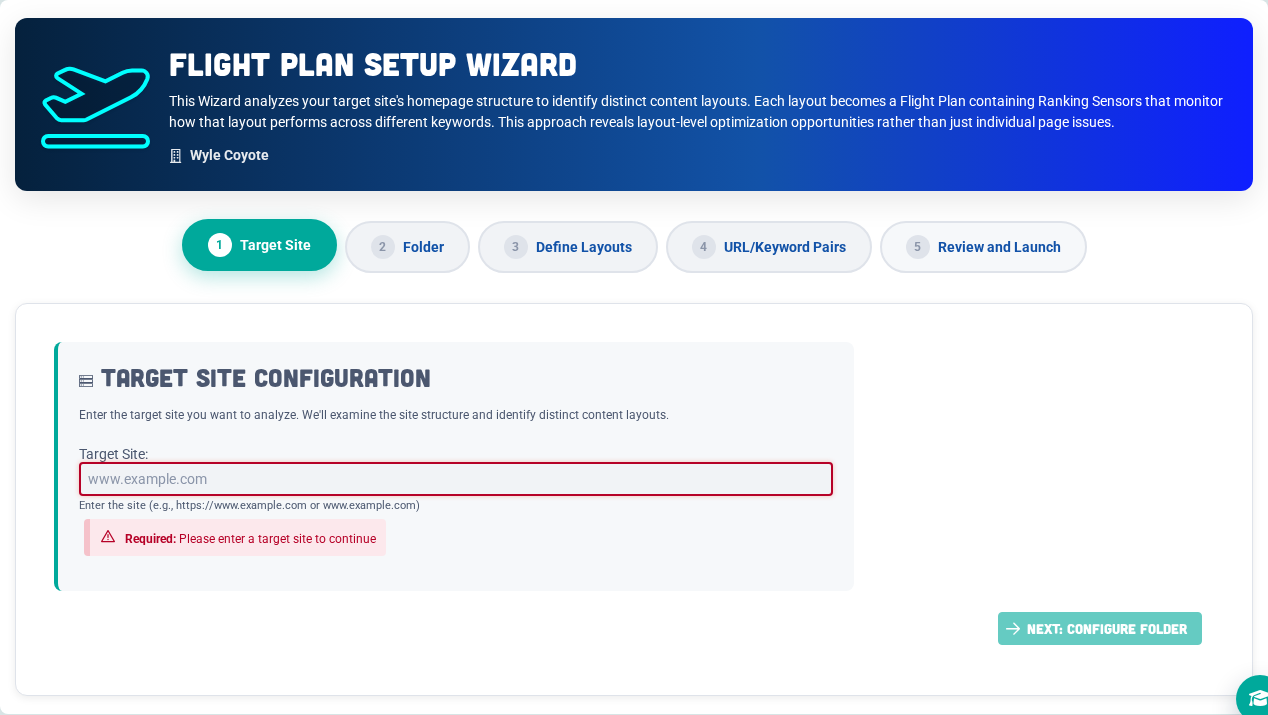
The Flight Plan Setup Wizard is a layout-driven approach to SEO analysis that organizes Ranking Sensors by page layout rather than treating each URL as an isolated page.

The wizard enables Market Brew to surface optimization opportunities at the layout level, revealing structural patterns that impact many pages at once.

Note: Flight Plan creation may be limited by account permissions.

The Flight Plan Setup Wizard changes how SEO modeling is initialized in Market Brew. Instead of manually creating Ranking Sensors one by one, the wizard:

  1. Analyzes the homepage to identify distinct page layouts
  2. Groups pages by layout based on URL structure and link patterns
  3. Automatically creates Flight Plans for each layout
  4. Populates each Flight Plan with Ranking Sensors using representative pages

This layout-centric approach shifts optimization away from one-off page fixes toward improvements that benefit entire sections of a site.

🎯 Key Benefits

Layout-Level Insights

Rather than diagnosing isolated issues, the wizard reveals patterns such as:

  • “This layout consistently underperforms across keywords”
  • “Pages using this layout share the same SEO weaknesses”
  • “Fixing this layout could improve dozens of pages at once”

This helps teams focus on high-leverage structural changes instead of chasing individual URLs.

Automated Setup

What previously required extensive manual configuration can now be completed in minutes. The wizard:

  • Detects layouts automatically
  • Selects representative URLs per layout
  • Creates fully configured Flight Plans with Ranking Sensors

This dramatically reduces setup time while improving consistency.

Scalable SEO Management

By organizing sensors around layouts, teams can:

  • Monitor entire content sections at once
  • Identify layout-wide technical or semantic issues
  • Prioritize fixes with the greatest site-wide impact
  • Track improvements across related pages together

A Flight Plan is a workspace that groups Ranking Sensors by page layout.

Example Flight Plans:

  • Blog Layout
  • Product Detail Layout
  • Location Page Layout
  • Student Resources Layout

Each Flight Plan represents a repeatable layout pattern shared across many URLs.

🔧 How the Wizard Works

Step 1: Target Site

Enter the site’s homepage URL. The system validates the site and prepares it for analysis.

Step 2: Define Layouts

The wizard identifies distinct layout buckets by analyzing homepage links and URL patterns.

Example (College Website):

  • Student Resources Layout
  • Degree Programs Layout
  • News & Events Layout
  • About Us Layout

Layouts can be renamed to match internal terminology.

Step 3: URL / Keyword Pairs

For each layout, the wizard:

  • Selects representative URLs
  • Suggests keywords those URLs are already associated with
  • Auto-creates multiple Ranking Sensors per Flight Plan
  • Allows permitted users to edit or add custom pairs

Step 4: Review & Launch

Review:

  • The number of Flight Plans
  • The number of Ranking Sensors
  • All URL / keyword pairs

Launching the wizard:

  • Creates all Flight Plans
  • Deploys all Ranking Sensors
  • Begins calibration automatically

📊 Understanding the Results

Flight Plan Dashboard

Each Flight Plan provides visibility into:

  • Common issues shared across the layout via Top Tasks

Editing a Flight Plan

To edit a Flight Plan, visit the Flight Plans screen, and click on a Flight Plan:

Only the Parent Account and Flight Plan Lead can edit Flight Plans.

On the Flight Plan page, you can view the Top Tasks and Ranking Sensors.

See Structure

Ranking Sensors

Ranking Sensors are calibrated digital twins of real search environments used to understand structure, authority, layout, linking, and content evaluation.

Ranking Sensors show calibrated model quality and access to model data.

Ranking Sensors are Market Brew's calibrated search engine models. Each sensor represents a target search environment and gives the system a controlled way to compare the target site against outperforming pages.

Use the listing to monitor model quality, crawl state, calibration state, and available actions. A well-maintained set of Ranking Sensors gives every downstream task better context because recommendations are based on the modeled ranking environment.

Ranking Sensors are the measurement units behind Site Architecture Realignment. They should be configured around clean search environments with representative landing pages, keywords, competitors, locale, device, and search-engine behavior.

Auto setup helps select representative ranking environments from licensed-site data.

Auto setup is the fastest way to create Ranking Sensors from licensed-site data. It helps identify candidate pages and keywords so the model can begin with practical, account-specific inputs.

Use auto setup when the site has enough crawl and keyword context for Market Brew to suggest a useful starting set. After setup, review the resulting sensors and group related ones into Flight Plans so structural patterns are easier to see.

Ranking Blueprint Tutorial - Market Brew

Market Brew encapsulates its search engine models within “Ranking Sensors”.

The Purpose of Ranking Sensors

The purpose of Ranking Sensors is to reveal the underlying architecture realignment at the LAYOUT level of a site. Therefore, we should not be concerned about achieving a perfect blueprint for any given keyword / landing page. Fixing a specific page comes from fixing the underlying LAYOUT. If you are concerned about specific page content optimization, use the Content Booster to achieve that.

Manual setup controls the target page, search environment, keyword, and plan assignment.

Manual setup is for cases where you already know the target page, search query, ranking environment, or custom SERP that should define the model. It gives precise control over how the sensor is created.

Use manual setup for important landing pages, unusual search environments, or situations where third-party ranking data needs correction. The more accurately the setup reflects the target search environment, the more useful the resulting recommendations will be.

It will never be possible for all Ranking Sensors to achieve a good calibration, because:

1.Ranking Data Time vs. Crawl Time differs by as much as 2-3 months.
2.SERP volatility has caused the rankings to shift since Ranking Data’s

underlying algorithms

Rather, we should be focusing on obtaining ENOUGH good Ranking Sensors to reveal the architectural re-alignment strategy. We do this through Flight Plans: a grouping of Ranking Sensors for a common template on the site.

For instance, if a site has a blog section, and all of the pages are driven from a blog template in the Content Management System (CMS), then we would create 3-5 Ranking Sensors for keywords/landing pages that use that blog template. We only need a few Ranking Sensors to reveal patterns in the Task system for this template.

Each Ranking Sensor Defines:

A Set of Websites These are sites that are determined by the Market Brew system to be outperformers of various algorithms. The Market Brew automated discovery system uses these websites to compare and contrast statistical differences in the search engine model to your target page.

One Specific Keyword Phrase

In the past Market Brew users could add multiple keywords to each Ranking Sensor, but that is no longer advised.

Each SERP has a unique set or flavor of algorithms, even between parent and long-tail versions of that same keyword!

Therefore, all new Ranking Sensors target one keyword only.

Boost Factors

Boost Factors are fine-tuning adjustments to the standard Market Brew model. These fine-tunings allow the Market Brew search engine to behave just like the target search engine environment:

Create a Ranking Sensor

Setup A Ranking Blueprint - Market Brew

Note: Ranking Sensor creation may be limited by account permissions.

Generate Multiple Ranking Sensors By Site

To create one or more Ranking Sensors for a given subdomain:

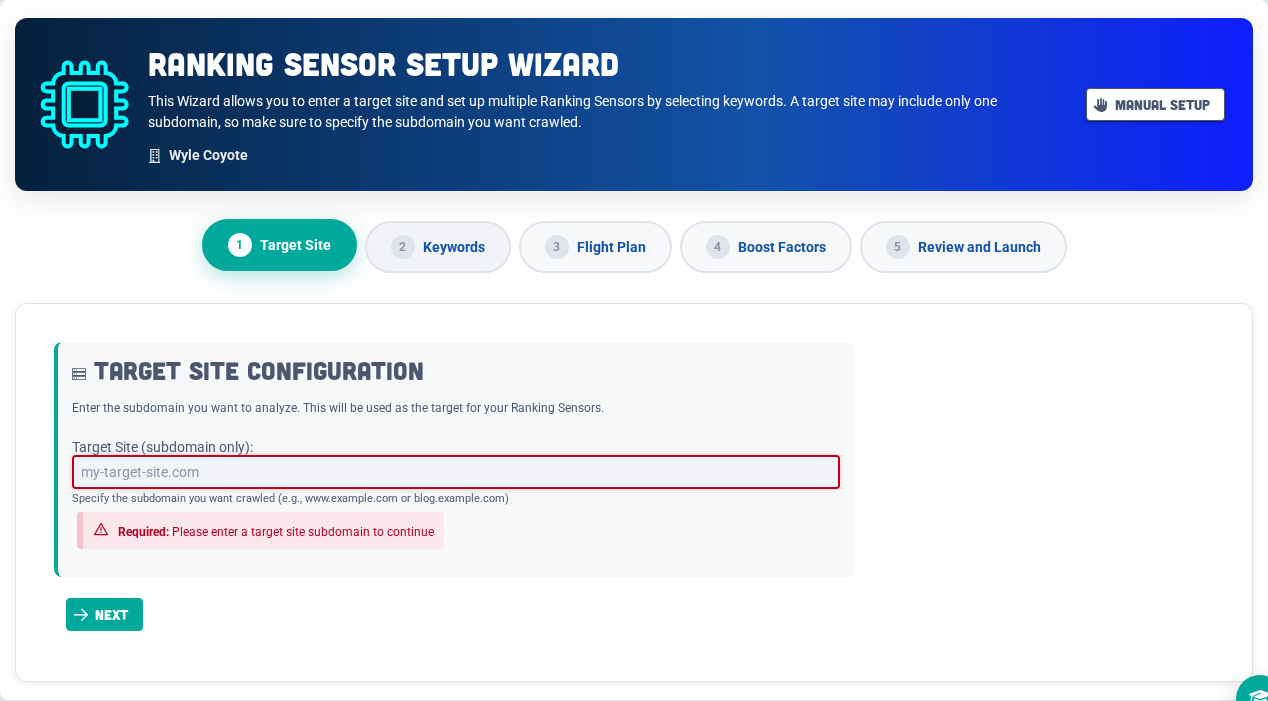
  1. Navigate to the appropriate Crew Settings screen, and click Add Ranking Sensor
  1. Enter a Target Site (note only the subdomain is needed).
  1. Select the desired keyword/s and landing pages (note: each keyword will set up a separate Ranking Sensor.)
  1. Additional information:
  • Add an optional Flight Plan,
  • Select which Child Crew to authorize,

There is a chance to review the setup information before initiating setup.

Manually Setup a Ranking Sensor

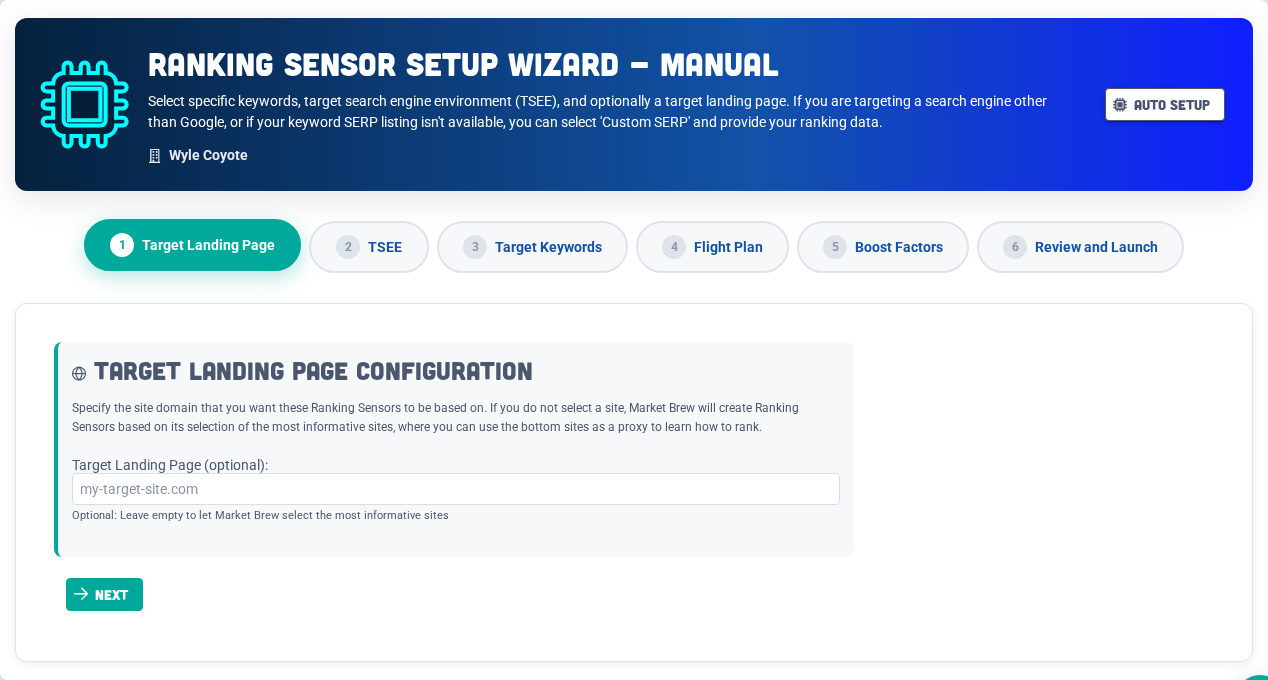
If you would like to provide a specific landing page or keyword, or customize the rankings to calibrate against, select the Manual Setup button.

Provide a Custom SERP and Searcher Location

Market Brew uses 3rd party ranking data to calibrate against. Sometimes that ranking data is incomplete. In those cases, select “Custom SERP” (Custom Rankings) under the TSEE options, and provide a list of valid URLs that the Ranking Sensor should use to calibrate against.

Manage Ranking Sensors

Market Brew will send an email notification as soon as the Ranking Sensor is setup.

View Boost Factors

Once the model is built, the Boost Factors will have been automatically calibrated, using Particle Swarm Optimization.

To view the Boost Factors:

  1. Visit the Ranking Sensor screen
  2. Navigate to Settings / Boost Factors

Adjusting Crawl Frequency

When setting up Ranking Sensors, typically the crawl frequency is set to One-Time, since these are “control groups” and we don’t want to change anything other than the target site.

To manually re-crawl select One-Time as the frequency. This will prevent the Ranking Sensor from automatically re-crawling its Websites.

To update Crawl Frequency:

  1. Navigate to the Settings / Main tab on the Ranking Sensor screen:
  1. Adjust Crawl Frequency:

Managing Scheduled Crawls Per Website

To adjust a crawl schedule for a Website:

  1. Navigate to the Data tab on the Ranking Sensor screen
  2. Under More Actions dropdown, click Manage Manage Scheduled Crawls.

Re-Crawl Target Site

To re-crawl the target site, click Re-Crawl Target Site under the Refresh dropdown at the top of the Ranking Sensor screen.

Re-Crawl Entire Ranking Sensor

To re-crawl an entire Ranking Sensor, click Re-Crawl All Sites under the Refresh dropdown at the top of the Ranking Sensor screen. Note: this is generally not advised since we want to keep everything constant while changing ONLY the target site.

Exploring the Search Engine Model

While it is not required to dive into the underlying search engine model, it is beneficial to understand how it works, to better anticipate answers to optimization problems that will arise.

To interact with the search engine model, click on Simulate a Search or Simulate a ChatGPT Search on the Ranking Sensor screen actions dropdown:

The search listing screen will contain only the websites that are part of the model, but will behave based on the target search engine environment (TSEE).

See Structure

Ranking Factors

Ranking Factors are the modeled algorithms that drive Market Brew Blueprints, including browser-based synthetic Core Web Vitals measurements and semantic, link, duplication, and content signals.

Market Brew Ranking Factors are the ranking factor algorithms that drive Market Brew Blueprints. They explain which modeled signals are being measured when Market Brew evaluates a page, template, website, subdomain, or query environment.

Use this section as a reference when reading Ranking Sensors, Flight Plans, optimization tasks, and Blueprint recommendations. Some ranking factors can be engineered directly in Content Booster, some are supported by rapid-test tools, and some come from external or modeled performance data.

Core Web Vitals ranking factors now use Market Brew browser-based synthetic measurements captured through the Selenium browser path and exposed through the Core Web Vitals Check page. URL-level CWV factors test the ranked page; subdomain CWV factors test the site root for broader section-level diagnosis.

#Ranking FactorWhat It Measures
1HTML (tf-idf)
Engineered within Content Booster

Measures the term frequency-inverse document frequency (TF-IDF) of terms found within the HTML body content. It evaluates how well the page content reflects important keywords relative to other documents in the index. A high TF-IDF score suggests that terms are used meaningfully and are contextually important for the page topic.

2Market Focus
Engineered within Content Booster

Derived from a Lucene Query Parser analysis applied to a predefined Market Focus Basket of terms. This measures how closely the page content aligns with the primary target market or niche and is especially useful for vertical-specific relevance.

3META Title (tf-idf)
Engineered within Content Booster

Calculates the TF-IDF score of the META Title tag. It highlights whether the title contains uniquely weighted and contextually relevant keywords. Because the title tag strongly influences ranking interpretation and click-through behavior, optimization here is important.

4META Description (tf-idf)
Engineered within Content Booster

Evaluates the META Description TF-IDF score. Although meta descriptions are not a direct Google ranking factor, this score reflects how well the description reinforces the semantic theme and keyword focus of the page.

5URL Path (tf-idf)

Applies TF-IDF to the URL path to determine how keyword-rich and semantically relevant the path is. Clean, meaningful URL paths tend to improve user understanding and search engine interpretation.

6URL Host (tf-idf)

Applies TF-IDF scoring to the domain name or host portion of the URL. It can reveal whether a domain inherently signals topical relevance, especially for branded or exact-match domains.

7Link Flow
Engineered within Content Booster

Measures the calculated value of PageRank-style link flow into the webpage based on the internal and external linking structure modeled by the search engine. Higher scores reflect stronger authority and link-based trust within the site ecosystem.

Tools: Link Flow Finder + Link Spotter

8Domain Rank
Engineered within Content Booster

Uses the DataForSEO domain-wide link authority score. It aggregates backlink quality, velocity, and trustworthiness as represented by DataForSEO.

Tools: Link Spotter + Link Injector

9Largest Contentful Paint

Uses Market Brew browser-based synthetic Core Web Vitals measurement to capture the render time of the largest visible element on the ranked page. Lower values indicate faster perceived load performance and better user experience.

Tools: Core Web Vitals Check

10Largest Contentful Paint (SUBDOMAIN)

Uses the same browser-based synthetic LCP measurement at the subdomain/root level. Domain-level CWV task links intentionally test the site root so teams can diagnose performance patterns that affect a broader site section.

Tools: Core Web Vitals Check

13Cumulative Layout Shift

Uses Market Brew browser-based synthetic Core Web Vitals measurement to assess visual stability on the ranked page by tracking unexpected layout shifts. Lower values mean fewer disruptive visual shifts.

Tools: Core Web Vitals Check

14Cumulative Layout Shift (SUBDOMAIN)

Uses the same browser-based synthetic CLS measurement at the subdomain/root level, helping diagnose layout-stability patterns across larger site sections.

Tools: Core Web Vitals Check

15Spotlight Focus
Engineered within Content Booster

Similar to Market Focus, this applies Lucene scoring to a separate Spotlight Focus Basket of terms, typically emphasizing secondary or complementary content themes that the page should rank for.

Tools: Spotlight Entity Visualizer

16Expertise Factor
Engineered within Content Booster

Reflects perceived topical authority and depth of page coverage. It incorporates structured signals that indicate subject-matter expertise, such as internal link context, glossary presence, and hierarchical layout.

Tools: Spotlight Entity Visualizer

17Keyword Duplication

Detects repeated use of identical keywords across multiple pages within the same website. High duplication can signal thin or redundant content, dilute relevance, and create algorithmic downgrade risk.

18Keyword Stuffing

Penalizes webpages for excessive, unnatural repetition of specific keywords. It identifies attempts to manipulate rankings through over-optimization.

19% Advertorial
Engineered within Content Booster

Measures the proportion of external outgoing links that appear editorial versus paid or promotional. A high advertorial percentage can suggest commercial bias that affects trust and authority.

20% Outgoing Paid Links
Engineered within Content Booster

Determines the percentage of outbound links that appear non-editorial or paid, such as affiliate or sponsored links. Search engines may discount or penalize pages that appear to manipulate links.

21Inbound Link Neighborhood

Averages the Link Flow Scores of all pages linking to the target webpage. It reflects the authority and quality of the backlink ecosystem around the page.

22Outbound Link Neighborhood
Engineered within Content Booster

Averages the Link Flow of all pages that the target webpage links out to. It helps evaluate whether the page associates with authoritative or low-quality external resources.

23Location
Engineered within Content Booster

Captures geographic proximity between the webpage content or target audience and the query origin. It is especially important for local SEO and regionally based queries.

Tools: Spotlight Entity Visualizer

24Interaction To Next Paint

Uses Market Brew browser-based synthetic Core Web Vitals measurement to track the delay between user input and the next visual update on the ranked page. Lower values indicate better perceived responsiveness.

Tools: Core Web Vitals Check

25Interaction To Next Paint (SUBDOMAIN)

Uses the same browser-based synthetic INP measurement at the subdomain/root level, helping diagnose responsiveness problems across different site sections.

Tools: Core Web Vitals Check

26Content Max. Similarity
Engineered within Content Booster

Measures the maximum cosine similarity between any individual 700-character content embedding on the page and the query embedding. It helps detect whether a specific passage is a strong match for search intent.

Tools: AI Overviews Visualizer

27Headings Similarity
Engineered within Content Booster

Evaluates how semantically aligned H1 through H6 headings are with the query. Headings define topic structure, and close similarity suggests strong topical alignment.

Tools: AI Overviews Visualizer

28META Title Similarity
Engineered within Content Booster

Computes semantic similarity between the META Title and the query using embeddings, indicating whether the page title reflects searcher intent.

Tools: AI Overviews Visualizer

29Content Blended Similarity
Engineered within Content Booster

Measures average cosine similarity across all 700-character content embeddings on the page. It provides a holistic view of how relevant the full page is to the query.

Tools: AI Overviews Visualizer

30Top Cluster Similarity
Engineered within Content Booster

Evaluates whether the most semantically relevant content chunk, based on cosine similarity to the query, is part of the page top embedding cluster. If so, it rewards cohesive semantic focus.

Tools: AI Overviews Visualizer

31Top Cluster Similarity (SUBDOMAIN)

Expands Top Cluster Similarity to the subdomain. If the most relevant embedding chunk exists within the subdomain top cluster, the score increases.

Tools: AI Overviews Visualizer

33Content Embedding Duplication

Compares the average content embedding, or centroid, of each page within the site to detect semantic redundancy. It penalizes pages that are too similar in theme or wording.

Tools: Embedding Separation Lab

34Top Embedding Cluster Duplication

Compares the centroid of each page top semantic cluster, the page dominant topic. Pages with similar dominant clusters are penalized for overlapping too closely in purpose or theme.

Tools: Embedding Separation Lab

See Structure

Data Discovery

Data Discovery contains the deep diagnostic views for crawls, webpages, link flow, anchor text, embeddings, and algorithm-specific evidence.

Top Tasks exposes repeated structural recommendations across Flight Plans.

Top Tasks collects recurring recommendations across Ranking Sensors and Flight Plans. It helps identify the work most likely to improve modeled performance across a site section.

Use Top Tasks to find patterns before assigning work. A recommendation that appears across multiple sensors usually deserves more attention than an isolated issue on a single page.

There are four main screens for each Website, and a Top Optimization Tasks screen for each Ranking Sensor Target Website:

Ranking Sensors show calibrated model quality and access to model data.

Ranking Sensors are Market Brew's calibrated search engine models. Each sensor represents a target search environment and gives the system a controlled way to compare the target site against outperforming pages.

Use the listing to monitor model quality, crawl state, calibration state, and available actions. A well-maintained set of Ranking Sensors gives every downstream task better context because recommendations are based on the modeled ranking environment.

  1. Task Summary – Market Brew runs millions of “what-if” simulations for every website in the Ranking Sensor, and determines (based on the search engine model assumptions) which optimizations would give the quickest statistical closure for the least amount of effort. You can also view any alternate landing page’s summary on-demand.
  1. Top Anchor Text – a powerful analysis of every anchor text in the site is evaluated and associated with a specific amount of Link Flow. This is called “Associated Link Flow Share”. Click on the “Show Competitors” checkbox and to instantly switch from the target site’s keywords to its competitor’s keywords.
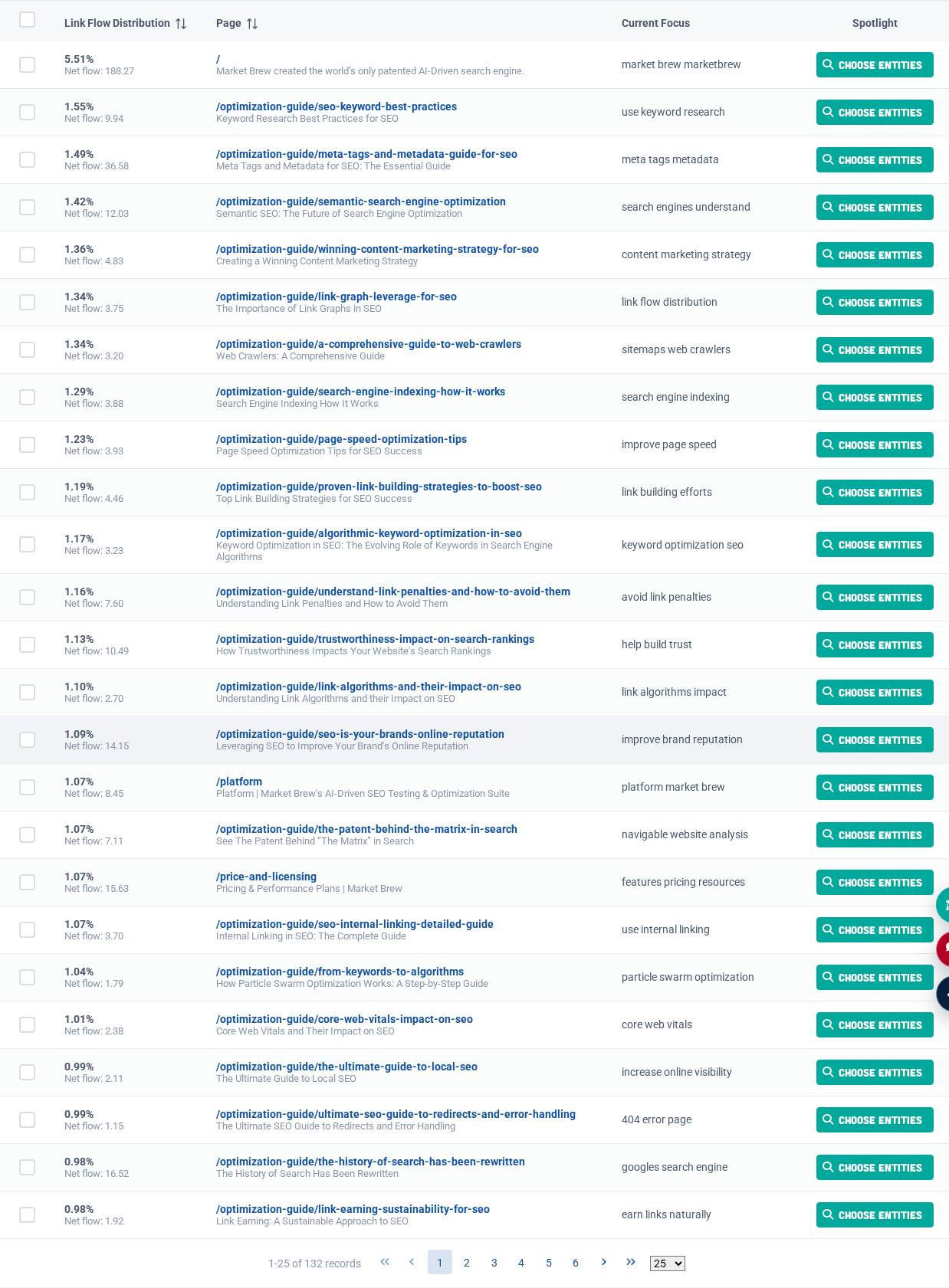
  1. Link Flow Distribution – one of the major components of a search engine model is the link graph, or how each webpage links to every other

webpage. The Link Flow Distribution screen reveals exactly how much Link Flow is being distributed to each webpage in the website. In addition, Market Brew provides a visualization of the shape of the distribution.

  1. Website Dashboard – contains all technical SEO: every input and output of data in the website. View the Report Center tab to find a treasure trove of data. Or click on an alert to visit a specific area of the search engine model.

Top Optimization Tasks

Optimization Tasks - Market Brew

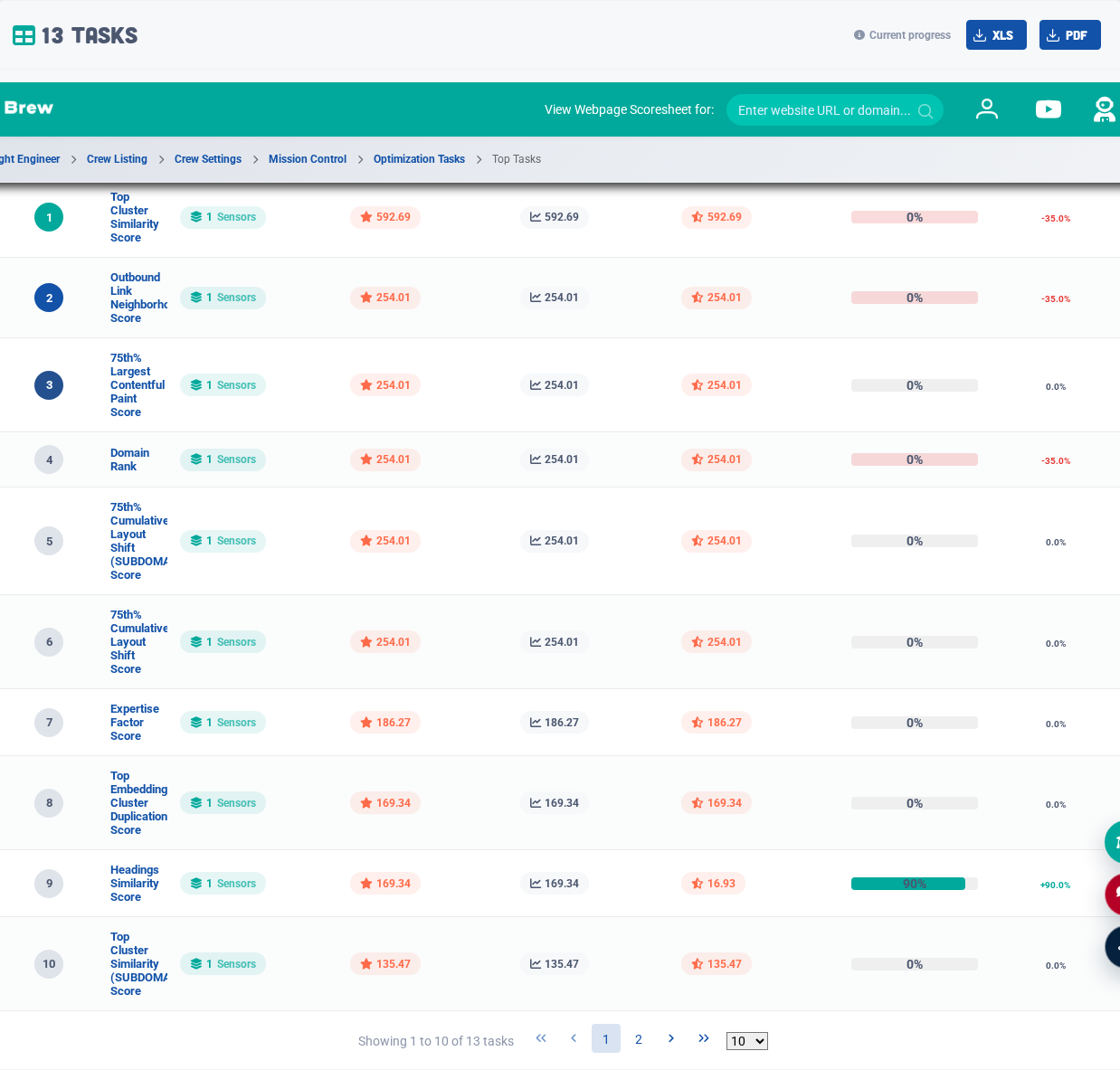
Each Ranking Sensor Screen provides a list of Open Optimization Tasks:

AI Overviews Visualizer drills into passage-level answer fit.

AI Overviews Visualizer analyzes passage-level answer fit. It helps identify which content chunks are most similar to a query and whether the page has passages that can support an answer.

Use this tool when optimizing for answer inclusion or diagnosing why a page is not being selected. Review the strongest and weakest passages, then improve the content where the semantic gap is clear.

These are the top tasks that have been generated for this Ranking Sensor / Target Landing Page combination. Click the number to see the detailed list:

Task progress is tracked since last calibration, and each Task is assigned a set of “Optimization Points”, with the most correlated algorithms and largest statistical gaps between the target landing page and each outperformer in that area of the model receiving the highest points.

The Tasks are sortable / filterable on points, page, task name, and type.

AI Mode Visualizer checks conversational prompt fan-out coverage.

AI Mode Visualizer evaluates how a page supports conversational prompt fan-out. It helps reveal whether content covers the related questions and query variations that AI systems may consider.

Use AI Mode when a page needs broader answer coverage around a root topic. Strong results should show meaningful coverage across prompt variants, not just a narrow match to one keyword.

Task Summary

To access the Task Summary screen:

  1. Navigate to a Ranking Sensor
  2. Find the target page and click the Data tab
  3. Click on Task Summary to view the top simulation that was run.

The Task Summary screen will show the top keyword / webpage combination to optimize, along with a detailed breakdown which calculates WHERE to efficiently reduce the statistical gap between this target page and the “Outperforming” competitor pages directly above it.

To select an alternative target page, use the Target Webpage dropdown selector.

Spotlight Visualizer exposes entity coverage and topic clusters.

Spotlight Visualizer exposes entity coverage, topic clusters, and related expert concepts. It helps evaluate whether a page demonstrates enough topical depth around the subject.

Use Spotlight when a page feels thin, unfocused, or missing supporting concepts. The goal is not to add random entities, but to improve coverage of the expert topics that make the page more complete.

Prioritized Opportunities to Improve your SERP Ranking

This section provides a technical breakdown of how the target landing page did against the search engine algorithms which are responsible for causing the biggest statistical gaps vs. the outperformer in the group.

In the example above, the model detected a statistical gap in the META Title between the target page and the outperformer and gave a quick comparison as well as links to explore more in detail.

Anchor Text Distribution

To access the Anchor Text Distribution:

Link Injector finds internal-link candidates for existing content.

Link Injector finds internal-link candidates that can support existing content. It looks for places where a relevant link can be added without relying on manual page-by-page searching.

Use Link Injector when a target page needs more internal support. Review each suggested placement for editorial fit before implementation so links improve both navigation and topical reinforcement.

  1. Within a Ranking Sensor click the Data tab next to the target site,
  2. Click on Anchor Text Distribution to view the Anchor Text Distribution for the Website.

Explore the Anchor Text Graph around your site, including the Associated Link Flow Share for every link, using Market Brew's powerful scoring layer.

Compare how your competitors' anchor text is set up, and understand more about how they are linking to content. See what the outperformer in this area of the model is doing.

Each anchor text has an “Associated Link Flow Share”. Associated Link Flow Share is the total amount of Link Flow flowing through links with that anchor text.

Target Site Research

The initial view is of the target site’s own anchor text.

Clicking on the anchor text provides a breakdown of every page with links to it that contain that anchor text:

Clicking on the Associated Link Flow Share provides a link listing of every link that has that word in its anchor text:

Competitor Site Research

Click on the “Show Competitor Data” checkbox within the Top Anchor Text screen. This will instantly switch from the target site’s anchor text to its competitor’s anchor text. Any site that appears alongside the target site, in any Ranking Sensor, is included. Therefore, the more Ranking Sensors the better the anchor text research becomes.

The Competitor view starts with grouping by anchor text.

To expand the view, click on a keyword to view a grouping by competitor sites.

Clicking on the anchor text in this mode takes you back to a “Target Site Research” page in that site’s context, listing each of its individual pages.

Link Flow Distribution

Mastering Link Flow Distribution with Market Brew | SEO Internal Linki…

To access the Link Flow Distribution screen:

  1. Navigate to a Ranking Sensor and click the Data button
  2. Click on Link Flow Distribution to view the Link Flow Distribution for the Website.

A view of the Website’s Link Flow Distribution will be presented, along with its Link Flow Distribution History:

This screen will show which webpages, structurally, should be positioned in the link graph of that website.

Flat Distributions – a Common Mistake

From roughly 2007 to present, it has been very customary to create mega menus that contain links to almost every page in the website. Menus with 40+ items are not uncommon today. However, search engines have maintained their algorithm that similar pages are measured against each other via the link graph calculation.

So, what is the problem? With a navigation design like this, the Link Flow Distribution gets very flat (lower value). When this happens, search engines will think the privacy policy page is just as important as the product page. Since the website will NEVER rank for privacy policy, it has effectively thrown away 50% of the Link Flow for the product page.

Therefore, it is very smart to ensure as much of a 1:1 relationship between the keywords you are targeting, and the pages that exist in the website. The Link Flow Distribution screen shows you how.

As a rough estimate, try to maintain 4-7 top pages (significantly more Link Flow % than the rest) until you are ranking in the top 10 for those. Then you can start adding sub-categories, once you have developed enough incoming Link Flow to the website (called the website’s “Gross Total Link Flow”).

Link Flow Finder

One of the biggest hurdles when it comes to adding links to a website, is the lack of knowledge on where to strategically add Link Flow to certain

pages for the highest impact. With the Link Flow Finder feature, this hurdle is a thing of the past.

The Link Flow Finder works like this: for each target page, the system takes the already calculated Market Focus Basket of phrases assigned to that URL, and uses those phrases to do a proximity search on all the other pages in the site. Each resulting text fragment / snippet, with these key phrases highlighted, is then presented to the user with the corresponding page that it is on.

Market Brew’s magic happens when our models find that the target site’s Market Focus Basket is NOT the best Market Focus Basket. When this occurs, it is the outperformer site that is used to harvest the keywords to search against. This is particularly helpful when a target site doesn’t know what the correct keywords are yet.

Therefore, the more Ranking Sensors the better the Link Flow Finder becomes.

To access the Link Flow Finder page:

Click the "Plus Sign'' on the left hand side of any page in the Link Flow Distribution screen. From this page Market Brew identifies where to add links to the target page using the highlighted snippets. The snippets are ordered by the most potential Net Link Flow Share, making this process a very powerful approach to shaping the Link Flow Distribution and Balance.

Website Dashboard

To Access The Website Dashboard:

  1. Navigate to a Ranking Sensor and click the Data button on the target site
  2. Click on Website Dashboard to view the Website Dashboard.

The Website Dashboard screen shows a lot of critical information for the entire subdomain:

  1. Website Alerts -- ordered by most critical to least critical, these are technical issues with the website. Note: they are NOT in order of the highest priority. For that, visit individual Ranking Sensors to determine exactly which issues are harming the website most.
  2. Link Flow Distribution – a statistical measure of how steep or flat the Link Flow Distribution curve is for the website’s internal linking structure.
  3. Link Flow Efficiency – a general indicator of how efficiently the website is using its Domain Rank (calculated primarily using the External Incoming Link Flow from other websites).
  1. Net Total Link Flow -- a quick breakdown of how both the algorithmic penalties and the Link Loss are affecting the overall Potential / Net Total Link Flow.

Website Reports

On the Website Dashboard, there are numerous ways to compare every input and output between any two different snapshots:

  1. Website History Report -- located on the Website Reports tab. This will provide every input and output of the model for each snapshot.

Algorithmic scoring and penalties can be easily compared between the production site and the test sites, to see if the overall situation is better or worse for each part of the search engine model.

Are the duplicate content penalties better or worse? Does the new content create “paid link” penalties in the model? Is the new content considered “keyword stuffing”? Is the Link Flow Distribution better on version 1 or version 2? This comparison will reveal the answer.

To access the Website History Report:

  1. Navigate to the chosen Ranking Sensor
  2. Navigate to the bottom right,
  3. Click on Website Reports
  4. Click on CATALOG-WEBSITE-HISTORY to download the document.

Query Scores

The search engine model query layer uses the Lucene Query Parser, which always gives the #1 ranking position a 100% query score, and then subsequent ranking positions are based relative to that.

Every major area of the search engine model is considered when determining which types of optimizations should be prioritized. In the case below, view the Query Score Breakdown and its subcomponents by clicking on the Query Score:

Scroll down to view every Boost Factor and how it contributes to the final Query Score.

Market Brew’s automated discovery system uses this data to replicate the exact types of algorithms that are the deciding factors in the target search engine environment (TSSE), shown on both the Top Optimization screen and the Market Brew Conversation reports.

Additional Data Screens

In addition to the main site screens, there are numerous supporting screens that allow a deep dive into the data already presented here.

The most common ones are:

Webpage Scoresheet

View all of the technical data for each webpage.

Webpage Scorecard

View how the families of modeled SPAM algorithms affected the webpage’s Net Total Link Flow.

Webpage Snapshot

View a cached view overlay of webpage data. Here is an overlay of duplicate content between this page and some other page in that site.

Link Listing

View links grouped by similar characteristics. Each link will transmit a specific amount of Link Flow Share, which is determined by simultaneously scoring each link on the page. There are thousands of iterative steps for some of these link algorithms. Click on the first icon to visit the Link Scorecard for more details for each link.

Link Scorecard

View how all link characteristics affected the Link Flow Share. Link penalties simply redistribute the Link Flow Share on the page, so by placing “penalties” on a particular link, you can often change the other links as this penalty is redistributed to other links on the page.

Market Focus

Market Focus Algorithm Tutorial | Keyword-Based SEO with Market Br…

The keyword-based semantic algorithm. See Spotlight Focus below for a similar algorithm’s explanation.

Embeddings Visualizer

The Website Embeddings Visualizer can be found on the Website Dashboard.

From your Ranking Sensor, click Website Dashboard:

If embeddings have been enabled, it will say “yes”. Click on that and you will be taken to the Embeddings Visualizer.

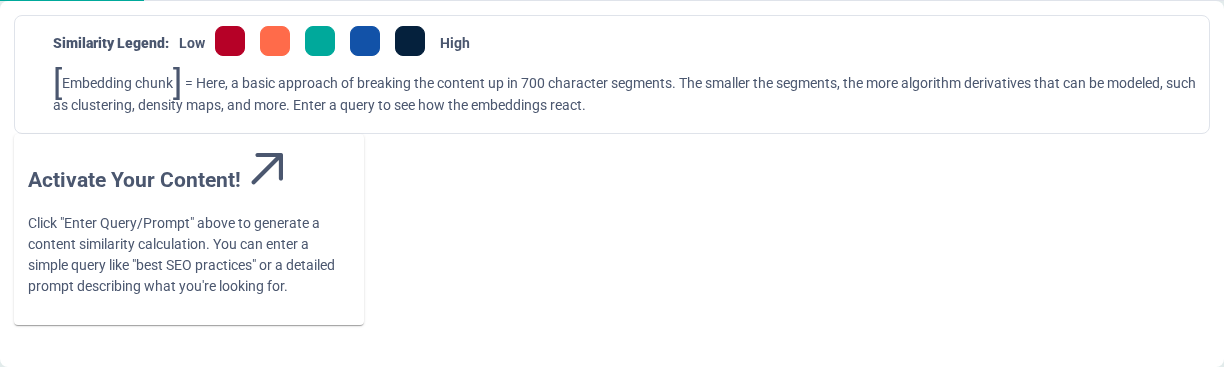
All of your content is chunked into 700 character segments and converted to a double vector of 1,536 dimensions.

These vectors are stored and can be manipulated to show many different aspects of your site.

Type a query and get back the similarity scores for the chunks in your site.

You can then filter on one specific embedding chunk…

…to find all other chunks like it on the site.

Note that even with the alike chunks filter on, you can still cluster them!

You can try to adjust your cluster number to tease out the different templates in the site, formal or informal. For example, if each page uses three template, setting the cluster # to four would capture your three templates in the three clusters, and cluster four would presumably contain all of your unique content on the site.

You can view any embedding chunk by clicking on the visualization icon:

And you will see the embedding chunk, with any entities and topic clusters detected within it.

AI Overviews Visualizer

AI Overviews Visualizer Tutorial - Market Brew

All of your content is chunked into 700 character segments and converted to a double vector of 1,536 dimensions. These vectors are stored and can be manipulated to show many different aspects of your site.

The AI Overviews Visualizer can be found on the Tools menu under “Visualize Embeddings”.

The embedding chunks are visualized and, if a query is added, a heat map showing the relative cosine similarity between the query vector and the embedding chunk vectors.

Given a query, there are a number of metrics that are derived from this, including:

  1. Max. Similarity: the maximum cosine similarity of any given embedding chunk with the query.
  2. Avg. Similarity: the average cosine similarities of each embedding chunk on the page.
  3. Top Cluster: the embedding chunk with the highest cosine similarity for the query is found, and the top cluster score is updated depending on

whether or not that embedding chunk is found on the page's top embedding cluster. Content chunks inserted into a page that aren't related to the page will receive lower scores because of this algorithm. This can be considered a page-level Parasite SEO filter.

  1. Top Cluster (Site): the embedding chunk with the highest cosine similarity for the query is found, and the top cluster (site) score is updated depending on whether or not that embedding chunk is found on the site’s top embedding cluster. Content chunks inserted into a page isn’t related to the site will receive lower scores because of this algorithm. This can be considered a site-level Parasite SEO filter.

Whenever you see a task based on these algorithms, the AI Overviews Visualization will help you adjust your content to align with Google’s bias.

Use the “Test New Content'' feature to upload your updated HTML and test again.

AI Mode Visualizer

AI Mode Visualizer Tutorial

Click on Tools, “Query Fan-Out”.

The AI Mode Visualizer tool allows you to compare the semantic similarity between multiple keyword embeddings and a webpage's content embeddings. This can help you understand how different sections of the page's content stack up against root and long-tail keywords. For detailed embedding insights about a specific keyword, use the AI Overviews Visualizer.

Enter a URL and up to 10 keywords to create a matrix of cosine similarities. This will calculate the average cosine similarity of each embedding chunk of content on the page, for each keyword.

How to Use the AI Mode Visualizer

The AI Mode Visualizer is a powerful tool that allows you to explore how Google views your page's content through embeddings:

  1. Enter a URL: In the input field labeled "Enter a URL," type or paste the

URL of the webpage you want to analyze.

  1. Enter Keywords: In the input field labeled "Enter Keywords," type or

paste the keywords (comma separated) that you would like to calculate.

  1. View Embedding Similarities: Once a URL and keywords are entered,

the AI Mode Visualizer will calculate the embedding similarities for the content on the webpage. You will be able to see the cosine similarity for each content chunk on the page.

Link Spotter

Find Perfect Link Opportunities Using AI - Market Brew Link Spotter Tu…

Click on Tools, Link Analysis, “Link Spotter”.

Find the best spots to link back to your most important pages. Link Spotter leverages the power of AI to analyze and recommend optimal link placements to a target page. Simply input a target page and up to five source pages, and Link Spotter will identify contextually relevant chunks of content within those pages to create high-impact links. Save time, improve your internal linking strategy, and enhance user experience and SEO with precision-driven recommendations.

Enter a target URL and up to 5 source URLs.

How to Use the Link Spotter

The Link Spotter is a powerful tool that allows you to find the best spots to link back to your most important pages:

  1. Enter a Target URL: Start by providing the Target URL of the page you

want to promote or connect more within your site.

  1. Add Up to Five Source URLs: Choose up to five URLs that might make

good link sources. These pages will be analyzed for relevance and context.

  1. Link Spotter Analyzes Content: The tool breaks each page into

sections, creating "chunks" of content that can be independently analyzed.

  1. Embedding and Clustering: Using AI and k-means clustering, Link

Spotter finds the content "chunks" that align most closely with your target URL's top embedding cluster.

  1. Get Your Link Recommendations: The tool returns a ranked list of

content chunks from the source URLs that are the best spots for linking back to your target page.

  1. Implement with Ease: Simply review the recommendations and add

the links directly to your content.

Spotlight Visualizer

Spotlight Focus Algorithm Explained | Entity SEO Classification with M…

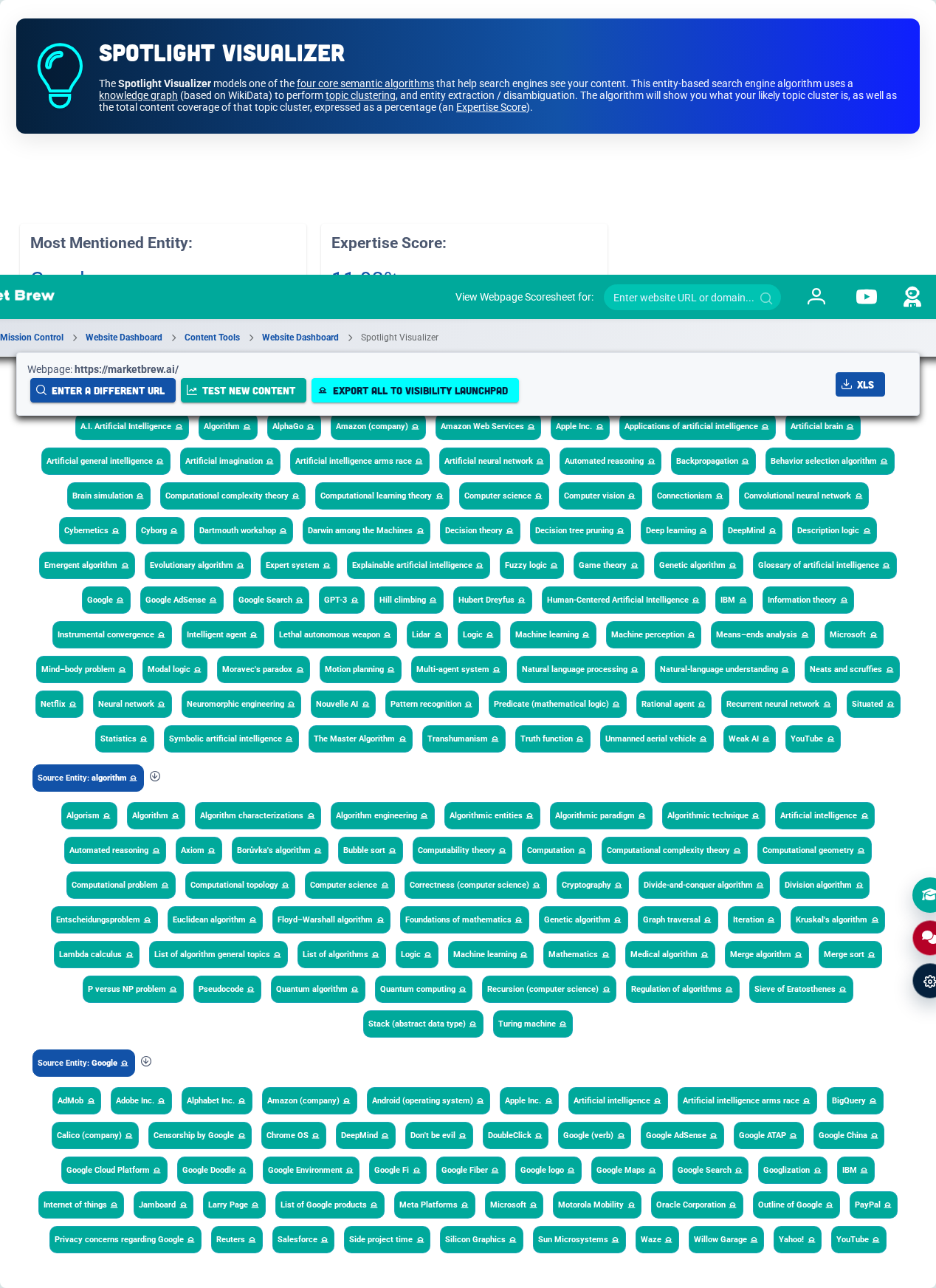
Spotlight Focus is Market Brew’s entity-based semantic algorithm that taps into the Knowledge Graph by performing a number of critical calculations:

  1. Entity Detection - each entity on the page that can be linked to the Knowledge Graph is detected.
  2. Entity Disambiguation - each entity is disambiguated using a neural network. “Ford” could mean “Gerald Ford” or “The Ford Company”, depending on the context of the surrounding content.
  3. Topic Clustering - each entity is inspected to determine which entities are most closely related to each other, and this is combined with the citation / link structure to the page to create a Related Entities (Topic Cluster).

Each incoming link is inspected and calculated to determine how much Link Flow Share is flowing through a link, and then each anchor text word is porter stemmed to associate that amount of Associated Link Flow with that anchor text word. Each time that word appears in one of the entities, that entity is promoted to the top of the Spotlight Focus basket.

The Spotlight algorithm can be found by clicking on the View Spotlight button next to the Top Spotlight Focus.

Here you can examine what the page’s Related Entities / Topic Cluster is, and within each entity / topic, a list of expert entities is presented. Hover

over any entity to see how much the page has covered for that entity / topic.

The summary of all coverages is presented as the Expertise Score (Topical Authority aka Expertise aka one of the “E”s in E-E-A-T).

Click on the entities to enter the Knowledge Graph, where you can take the Abstract Snippet and add this content to your page to increase your Expertise Score. Make sure you are adding expert topics and not subject topics, as the subject topic will make the Related Entities / Topic Cluster more broad and often less focused.

See Structure

Testing Changes With Ranking Sensors

Use Ranking Sensors to test focused site changes, isolate cause and effect, and compare model reactions before rolling changes broadly.

Ranking Sensors show calibrated model quality and access to model data.

Ranking Sensors are Market Brew's calibrated search engine models. Each sensor represents a target search environment and gives the system a controlled way to compare the target site against outperforming pages.

Use the listing to monitor model quality, crawl state, calibration state, and available actions. A well-maintained set of Ranking Sensors gives every downstream task better context because recommendations are based on the modeled ranking environment.

One of the huge advantages of using a search engine model to discover optimizations is that each implemented change can be quickly tested to see how the model reacts.

Top Tasks exposes repeated structural recommendations across Flight Plans.

Top Tasks collects recurring recommendations across Ranking Sensors and Flight Plans. It helps identify the work most likely to improve modeled performance across a site section.

Use Top Tasks to find patterns before assigning work. A recommendation that appears across multiple sensors usually deserves more attention than an isolated issue on a single page.

Because of this new predictive model approach, you can now test quicker than ever before.

But you must put this to good use: transition your thinking to a more agile approach: “iterate, test, iterate, test”.

Making a narrow set of related changes and then re-crawling helps you isolate changes and test the potential positive/negative effects of those changes.

Note: all Ranking Sensors in your Account, that contain the Website being re-crawled, will automatically be re-calculated (and auto self-calibrated if enabled) upon the completion of the Website Re-Crawl.

A/B Testing Using A Test Site

Note that only Market Brew Accounts that can add or remove Websites from a Ranking Sensor can perform certain operations outlined below. If the account does not have the capability to do these operations, please contact the designated Support Account for a one-time setup assistance.

Setting Up The Test Models

After successfully setting up your baseline Ranking Sensor, or the “Production Model”, the next step is to create test models. A test model will be set up for each proposed variation of the changes to the production site.

Market Brew separates unique sites by subdomain, so each test variation should be deployed on its own unique subdomain, for example:

  1. test1.mydomain.com,
  2. test2.mydomain.com,
  3. test3.mydomain.com...and so on.

Each of these variations will have their own Ranking Sensor.

1. Copy The Production Model Settings

Each Ranking Sensor should have the SAME SETTINGS as the production Ranking Sensor (this is done by copying the Ranking Sensor from the production version) -- to simulate the exact same model against all variations of the test group.

On the Ranking Sensor Listing screen, copy the production Ranking Sensor by clicking “COPY” and selecting the appropriate row.

2. Replace Production Site With Test Site

Next, replace the production website with the test sites for each Ranking Sensor.

To Replace the Production Site:

  1. Navigate to the Ranking Sensor
  2. On the Ranking Sensor screen, next to the production site, click the More Actions dropdown
  3. Select Remove This Website:

Next, add the test site’s landing page (test1/landingpage.html, test2/landingpage.html, test3/landingpage.html, et al.) for the Ranking Sensor:

Note that the system will use the exact landing page URL that you add, so make sure you choose the correct landing page. This will be important in the next step when we add the target page to the Ranking Sensor.

3. Make Test Site the Target Website

Once the test website has been added to the Ranking Sensor (this may take a while if the system needs to re-crawl the site), you need to make it the default target website, so all Ranking Sensor tasks are generated from this site’s context.

Once you have removed the production site / added the testing site on the copy of the Ranking Sensor, we now must select the correct landing page. To do this, we first select edit / delete on the testing site:

Then, on this edit settings screen, we need to add the preferred page (these are one per line):

You will need to consult the original Ranking Sensor to understand which page should be referenced. It may be the same URL just with a different server host, or it may be a different URL altogether. We currently don't have an automated way of doing this.

Once you’ve added your Preferred Page, save your changes.

Then navigate to the Ranking Sensor where you will select this preferred page as the "Target URL"

The system does not know which landing page is the correct landing page, since it relies on rankings to determine this normally. Your test site will not be listed in the rankings, so this is a required manual step.

It is possible that after selecting the target URL, an error message occurs: “Target URL not crawled yet. Please initiate a re-crawl to crawl this URL first.”

4. Re-Calculate the Ranking Sensor

Once the target URL has been established, select “re-calculate tasks” under the “refresh” button of the Ranking Sensor screen, so that new tasks are generated. Note: you may be prompted to re-crawl the testing site first, which will automatically re-calculate tasks at the end of the re-crawl.

How to Compare Optimizations and Predict Rankings Changes

The goal of each test Ranking Sensor is to compare Market Brew’s proposed changes to that of the production Ranking Sensor results. There are a number of ways to do this inside of Market Brew:

  1. Combined Search Listing Screen – by clicking on the “Actions” dropdown on any Ranking Sensor screen, you can select “Simulate a Search”, which will give you a chance to see the rankings distances / query scores for each result in the model.
  1. The Website History Report – will provide every input and output of the search engine model to compare any KPI between the test and production sites.
  1. The Rankings Reports -- On the Ranking Sensor screen, under the “More” dropdown, click Ranking Sensor History. Each row will contain a snapshot. Download the rankings reports there.

These reports will provide query sub-scores as compared to the existing competition in the production-calibrated search engine model.

Note: the backlink structure of the test sites will NOT be present in the model, so comparing the overall query score, as well as domain ranks, will not be accurate. But all other scoring, including all semantic algorithms as well as the Net Total Link

Flow metric (which incorporates all internal link scoring and distribution, as well as algorithmic SPAM filters) will be available for comparison.

For example, wondering how much more Link Flow Distribution the Home Page is getting now with the newly proposed linking architecture from the Link Flow Finder? Or if the semantic algorithm scores are better or worse with the newly proposed content and recommendations from Market Brew? This will reveal the answer.

See Structure

Market Brew Rules

Market Brew Rules monitor crawl and model signals after recrawls so teams can be alerted when important conditions change.

Ranking Sensors show calibrated model quality and access to model data.

Ranking Sensors are Market Brew's calibrated search engine models. Each sensor represents a target search environment and gives the system a controlled way to compare the target site against outperforming pages.

Use the listing to monitor model quality, crawl state, calibration state, and available actions. A well-maintained set of Ranking Sensors gives every downstream task better context because recommendations are based on the modeled ranking environment.

Using the Rules Wizard

Market Brew has the ability to “set it and forget it” using a rules-based engine.

Whenever a Website is re-crawled, each Market Brew Rule that was defined for that Website is evaluated. If the rule condition is TRUE, then an email alert is sent instantly.

Market Brew makes it very easy to create rules automatically. Click on any pencil icon next to an item to create a rule with:

Then, simply follow Market Brew Rules Wizard. Select the condition, (optionally) enter a value, name the rule, and done! Market Brew Rules are fired off only after a Website has been re-crawled.

The rule is customizable after being saved.

Manage Market Brew Rules

On the Ranking Sensor screen, under the Data tab, click on the More Actions dropdown, located on the right-hand side of any Website, and select Manage Market Brew Rules.

The list displays the Market Brew Rules for each Webpage and also shows rules created for the Website as a whole.

From here drill-down into each Webpage’s rules, and manage the Scheduled Crawls directly from this view.

Click on any Market Brew Rule to enter the Edit Rule screen. In this screen, modify, delete or test different changes to the rule to see if it would fire or not.

Market Brew Rule Operators

The following standard operators can be used in a Market Brew Rule. Note, all Text should be enclosed with double quotes ("").

OperatorSymbolNumericText
Power^
Boolean Not!
Boolean And&&
Boolean Or||
Less or Equal, More or Equal<=, >=
Less Than, Greater Than<, >
Not Equal, Equal!=, ==
Assignment=
Unary Plus, Unary Minus+x, -x
Dot product, cross product., ^^
Modulus%
Division/
Multiplication*
Addition, Subtraction+, - (only +)

Example Market Brew Rules

Below are some simple examples of what you can do with Market Brew Rules. Using any of the operators above, you can combine any piece of data for a Website, and come up with a new and customized alert system. The combinations are endless — only your imagination holds you back.

● Check to see whether or not a Website has any Broken Links:

numBrokenLinks > 0

● Check to see whether or not a specific Webpage has issues loading

on the Web Server. You may be having issues with your Hosting Provider and want to know if the Webpage load times are sufficient enough for your user experience / SLA:

retrieveTimeMillis > 5000

● Check to see whether or not a Webpage's Market Focus is no longer

"search engine optimization". This would let you know when an edit on a Webpage accidently changes your Market Focus, thus causing your target keywords to drop in ranking:

marketFocus != "search engine optimization"

  • Check to see whether or not a Link's net Link Flow Share drops below a threshold. You might want to know when a Link that you have on another Website is of no longer use:

(netLinkFlowPercent/100) * linkFlow < 25.75

See Structure

Reporting

Reporting and snapshot history help teams compare Ranking Sensor changes over time and explain model movement.

Ranking Sensors show calibrated model quality and access to model data.

Ranking Sensors are Market Brew's calibrated search engine models. Each sensor represents a target search environment and gives the system a controlled way to compare the target site against outperforming pages.

Use the listing to monitor model quality, crawl state, calibration state, and available actions. A well-maintained set of Ranking Sensors gives every downstream task better context because recommendations are based on the modeled ranking environment.

Market Brew maintains a historical “tick chart” view of every “snapshot” of a Ranking Sensor. It therefore represents a powerful tool to regression test, debug changes, and predict future behavior on a target search engine environment (TSEE).

Top Tasks exposes repeated structural recommendations across Flight Plans.

Top Tasks collects recurring recommendations across Ranking Sensors and Flight Plans. It helps identify the work most likely to improve modeled performance across a site section.

Use Top Tasks to find patterns before assigning work. A recommendation that appears across multiple sensors usually deserves more attention than an isolated issue on a single page.

Market Brew Conversation

These fully-automated, deep dive analysis reports can be viewed on each calibrated Ranking Sensor by clicking on View Conversation under the More dropdown:

Or by viewing the Snapshot History screen:

Individual Conversations Are Also Available On the Top Optimization Screen for each website.

What Is In A Market Brew Conversation?

Market Brew Conversations contain the following information:

  1. Summary of Model: An overview of what the search engine model currently represents.
  1. Summary of Changes: search result listings are compared between two snapshots. This includes both a textual and graphical query score gap comparison and analysis, as well as a boost factor comparison and analysis.
  1. Ranking Distance Trend Analysis: trends in query score gap, net total link flow gap, domain rank gap, semantic score gap, and many sub-score gaps, are analyzed and then reasons are presented. This portion is also

available via email notifications. Refer to “How Do I Get Email Notifications?”

  1. Current Analysis: every website’s deep dive in one. Each site is analyzed to determine the biggest statistical gaps between it and the “outperformer” in the group. Note: the outperformer is not necessarily the overall #1 ranking site. It is the webpage that scores the highest for the Boost Factor. Each deep dive includes an analysis of every area of the SEO spectrum: off-page, on-page, and everything in between. Insightful graphical presentations illustrate exactly why the outperformer is doing so well in comparison to the target site.
  1. Biggest Weaknesses: each site is compared to the outperformer in the group, and the biggest weaknesses are investigated one by one. The system drills down into each area, illustrating why the site is underperforming and offers actionable optimizations to implement to close the gap on the outperformer in the group.

Using Trend Analysis To Detect Important Changes:

Market Brew provides modeling features that track and characterize each algorithmic update.

View Boost Factor Trends When The TSEE Changes Algorithm Settings

The Boost Factors, which are the bias/weight settings on each main part of the search engine model, are often updated by the TSEE. Market Brew will detect this, and if any Boost Factors were re-calibrated, check and see exactly what settings changed between the current and previous snapshot:

View Boost Factors For Any Previous Snapshot

The Boost Factors can also be viewed by clicking on the dropdown arrow on the Snapshot History screen:

Use Case Example: Ticketmaster Discovers a New Bias

  1. The SEO team at Ticketmaster has been modeling “boxing tickets” in an important Ranking Sensor. This model has been stable for quite a while. Last evening, something changed on the target search engine’s results. Ticketmaster’s site dropped in ranking, but Market Brew’s models do not yet reflect this.
  2. They quickly re-calibrate their Ranking Sensors.
  3. The Market Brew Ranking Sensor is recalibrated and the Boost Factors are recorded.
  4. The SEO team at Ticketmaster quickly reviews the Boost Factors from before, and sees that the target search engine has updated its bias/weights. There is more Boost Factor on META Title and the Market Focus (semantic) algorithm, and less Boost Factor on Domain Rank.
  5. They immediately compare the Market Brew modeled semantic algorithms between their landing page and the outperformer in that model. They remove any existing statistical gap in scores, and verify with a re-crawl in Market Brew to confirm the jump in score and regaining of rank.

Use Case Example: Ticketmaster Discovers a Bias Trend

  1. The SEO team at Ticketmaster discovers a similar change in Boost Factors on a number of other similar Ranking Sensors that they have setup in Market Brew: there is more Boost Factor on META Title and the Market Focus (semantic) algorithm, and less Boost Factor on Domain Rank.
  2. They present these trends at their next quarterly meeting with the VPs. Budget is correctly redirected from building backlinks (promoting better Domain Rank) to better content writers (promoting better semantic algorithm scores).
  3. The team has fixed not only one specific landing page, but all other landing pages that are related to this target search engine’s algorithmic shift.

When Does a Market Brew Conversation Get Generated?

After Market Brew has completed crawling a Ranking Sensor, the first Market Brew Conversation will be generated. This Conversation Report will not include any trend analysis as there are no historic snapshots to compare to.

After the initial crawl, Market Brew Conversations are re-generated for calibrated Ranking Sensors, showing trend data.

Reach Share Reports

Once a Ranking Sensor has been calculated, each Website will receive a specific amount of reach estimate from the total possible reach estimate:

Click on the TSEE ranking to reveal a tick chart of past Reach Shares for that website:

Add additional websites to compare:

View the movement in rankings at a more granular level by clicking through to see the types of keywords that are being ranked.

Keyword Reports

Market Brew also keeps historical data on the traffic-producing keywords to model the Ranking Sensor with. On the Ranking Sensor Keywords screen, click on View Keyword Rankings to reveal the historical rankings:

A tick chart for all websites is included within the Ranking Sensor:

Website History Reports

On the Website Dashboard and under the Website’s Data dropdown on each Ranking Sensor screen, the ability to download every input and output data point that the Market Brew system has ever recorded is available.

The CATALOG-WEBSITE-HISTORY report contains both website and webpage metrics that help identify any issue noticed by the search engine model.

Ranking Reports

In the Ranking Sensor screen, under Actions dropdown, click Ranking Sensor History:

Click the Rankings Report button to view the rankings data:

The (Duplicates) Rankings are not filtered. That is, they can contain many pages per website in each modeled search result.

(Note: only one snapshot per 24 hour period is stored in Market Brew. Therefore, if you’d like to compare snapshots in the same 24 hour period, you should download these before you initiate any new re-crawls or re-calculations of the Ranking Sensor.)

Hear Intent

Hear Intent: Signals And Opportunity Discovery

Use the Hear Intent track to collect first-party prompts, external trends, keywords, and entity signals before deciding what content action is justified.

Signal Sources connects Ask, Listen, Keyword Fueler, Bridge, and social inputs to Launchpad.

Signal Sources controls which discovery engines feed Visibility Launchpad. Ask contributes internal questions, Listen contributes external activity, Keyword Fueler contributes demand signals, and Bridge contributes entity-driven opportunities.

Keep the enabled sources aligned with the account strategy. A content-heavy account may rely on Ask and Content Booster signals, while a trend-sensitive account may need Listen and Keyword Fueler to surface new opportunities more quickly.

Hear Intent is the demand-sensing layer of Market Brew. It gathers what customers ask, what markets discuss, what competitors expose, and what entity or keyword gaps should become opportunities.

Visibility Launchpad aggregates signals into prioritized opportunities.

Visibility Launchpad is the priority queue for opportunities coming from Ask, Listen, Keyword Fueler, Bridge, and related workflows. It gives teams one place to compare demand and decide what should be handled next.

Use Launchpad to avoid treating every signal as equally important. Review opportunity fit, source, priority, and action path before sending work into Content Booster or another execution tool.

The goal is not to create a noisy keyword list. The goal is to identify verified demand and route it into Visibility Launchpad with enough context to decide whether to improve an existing page, create a new answer asset, or ignore the signal.

  • Brand Briefing and Knowledge Base anchor the account in the brand’s real positioning and source material.
  • Ask, Listen, Keyword Fueler, and Bridge collect different classes of signal.
  • Visibility Launchpad turns those signals into prioritized keyword opportunities, prompt opportunities, and content gaps.

Hear Intent: Signals And Opportunity Discovery connects the relevant Market Brew screens into a practical workflow. Use this section to understand what the feature is responsible for, what inputs it depends on, and what output or recommendation it produces.

Signal Sources connects Ask, Listen, Keyword Fueler, Bridge, and social inputs to Launchpad. Visibility Launchpad aggregates signals into prioritized opportunities. These areas show the controls and data that drive the feature. Review the settings, status, and results in context before deciding whether to analyze, prioritize, generate, or refine the next item.

Most workflows depend on the selected crew and website context. Confirm that context first, then use the Explore buttons to open the related Market Brew screen and continue from the same operational area described in the manual.

Before making changes, compare the screen against the account strategy. For structural workflows, look for repeated patterns across Ranking Sensors, Flight Plans, and Top Tasks. For the Answers workflow, look for brand context, signal sources, Launchpad priority, and whether existing content should be improved before creating a new asset. For administration screens, verify that normal crew-facing tabs are used and that admin-only controls are not part of routine customer instructions.

Hear Intent

Brand Briefing And Knowledge Base

Brand Briefing and Knowledge Base are foundational context for Answers, Content Booster, and Flight Director recommendations.

Brand Briefing anchors answer generation in the brand footprint.

Brand Briefing stores the brand, audience, positioning, tone, and business context that should shape generated answers and content recommendations.

Complete the brand context before relying heavily on Content Booster or answer-generation workflows. Better briefing material reduces generic output and helps the system preserve the account's positioning.

Brand Briefing defines the structured audience, products, positioning, voice, proof points, and centroid keywords that keep answer generation aligned with the licensed website.

Knowledge Base selection controls source material for generation and recommendations.

The Knowledge Base controls which approved source material can be used by generation and recommendation workflows. It keeps output grounded in the account's own references instead of broad generic assumptions.

Use Knowledge Base sources for product details, service descriptions, proof points, compliance language, and internal positioning. Keep the sources current so generated content reflects the latest approved account information.

The Knowledge Base supplies reusable source material for Brand Briefing, Content Booster, and answer generation. Review these inputs before scaling Content Booster work, because weak source context can pollute generated drafts and recommendations.

  • Use Brand Briefing to inspect and update the brand footprint.
  • Use Brand Alignment and Orbital Drift to compare the brand core against actual site content.
  • Select the Knowledge Base that should supply source material for downstream workflows.

Brand Briefing And Knowledge Base connects the relevant Market Brew screens into a practical workflow. Use this section to understand what the feature is responsible for, what inputs it depends on, and what output or recommendation it produces.

Brand Briefing anchors answer generation in the brand footprint. Knowledge Base selection controls source material for generation and recommendations. These areas show the controls and data that drive the feature. Review the settings, status, and results in context before deciding whether to analyze, prioritize, generate, or refine the next item.

Most workflows depend on the selected crew and website context. Confirm that context first, then use the Explore buttons to open the related Market Brew screen and continue from the same operational area described in the manual.

Before making changes, compare the screen against the account strategy. For structural workflows, look for repeated patterns across Ranking Sensors, Flight Plans, and Top Tasks. For the Answers workflow, look for brand context, signal sources, Launchpad priority, and whether existing content should be improved before creating a new asset. For administration screens, verify that normal crew-facing tabs are used and that admin-only controls are not part of routine customer instructions.

Hear Intent

Ask

Ask captures real prompt and answer behavior, exposes content gaps, and explains citation selection through embedding fit and page fit.

Ask starts with a natural-language prompt for the selected account context.

Ask lets users test natural-language questions against the selected account context. It is useful for discovering whether the site already answers the kinds of prompts customers and AI systems may use.

Enter realistic questions rather than keyword fragments. The stronger the prompt resembles an actual user need, the more useful the response, citations, and gap analysis will be.

Ask belongs to the Hear Intent track. It captures the questions people and AI systems ask, then shows whether the site has answer assets that can satisfy those prompts.

Ask explains citation selection with fit metrics and content gap signals.

Ask explains why particular citations were selected and where the answer may be weak. Fit metrics help separate pages that merely mention a topic from pages that strongly support the response.

Use these details to decide whether existing pages need improvement or whether a new Content Booster opportunity should be created. The citation analysis is especially useful when a page ranks or appears relevant but does not fully answer the prompt.

Simulate real-world search behavior inside your own site.

Overview

Ask is your on-site AI Search Assistant — a simulation environment that models how both users and AI systems (like Google’s AI Overviews) interpret and interact with your content.

By typing natural-language questions into Ask, you can test how well your content answers real user queries. The system detects missing topics, semantic misalignments, and answer gaps — then feeds those signals directly into Visibility Launchpad for deeper analysis.

💡 Think of Ask as your AI-mode search engine sandbox — a window into how Google’s LLMs “see” your site.

Accessing Ask

You can open Ask from multiple locations:

  • From Mission Control, click Configure Signals → Ask.
  • Or navigate directly to: Dashboard → Ask (Search Assistant)

Once inside Ask, select the website or subdomain you wish to analyze.

Running Queries

1. Enter a Query

In the Ask interface, type any question or phrase a real user (or AI model) might use to find your content. Examples:

  • “How does Market Brew simulate Google’s AI Mode?”
  • “Best practices for SEO embeddings”

2. View AI-Mode Results

Ask retrieves and ranks passages from your indexed pages — displaying the Top 10 Most Relevant Content Blocks. Each block includes:

  • Page Title and URL
  • Passage Text (700-character embedding window)
  • Cosine Similarity Score (0–1.0)
  • Matching Cluster and Confidence Indicator

🔍 Similarity Score measures how close your page’s content embeddings are to the query. A score above 0.85 indicates strong alignment. Below 0.6 suggests a content gap.

Analyzing Ask Results

Visitor Queries and AI-Mode Insights

Ask visualizes your content in embedding space — showing how your pages cluster around specific query intents. This allows you to:

  • Detect semantic blind spots where no content covers a particular question.
  • Identify redundant clusters where multiple pages compete for the same query intent.
  • Understand how LLMs associate your passages with user prompts.

When Ask returns no high-similarity matches (or fails to surface relevant passages), that query becomes a signal — automatically sent to Visibility Launchpad as a new opportunity candidate.

💡 Pro Tip: Run batches of top keyword questions from your analytics or Listen feed to quickly uncover weak areas.

Exporting Ask Data to Visibility Launchpad

Each query’s metadata (query text, similarity scores, and matched pages) will be automatically exported to Visibility Launchpad for further analysis when the threshold has been reached.

To Export:

  1. Configure “Content Gap Threshold” slider.
  2. Ask will automatically send the opportunity to your next Launchpad.

The Launchpad then aggregates your Ask signals with Listen and Keyword Fueling inputs.

Routing Signals To Content Booster

In addition to sending the prompt opportunity to Launchpad, you can trigger Content Booster to create a new page tailored to that prompt.

Steps:

  • Enabled Auto Generation
  • Select your Content Booster Template

Now your prompt opportunities will trigger Content Boosters automatically.

🚀 Workflow Example: “Ask” identifies a missing topic → “Launchpad” prioritizes it → “Booster” generates optimized content in minutes.

Recommended Use Cases

ScenarioObjectiveOutput
SEO AuditIdentify where current pages fail to matchList of low-similarity queries query intent
Content StrategyGenerate topic ideas based on real user or AINew page opportunities queries
OnboardingDemonstrate AI-Mode search behavior forVisualized embedding comparisons clients Pro Tips
  • Run Ask weekly to detect shifts in AI-Mode coverage and topical alignment.
  • Use competitor URLs in the same query to benchmark their passage coverage.
  • Pair Ask reports with AI Overviews Visualizer for a holistic understanding of how AI surfaces content.
Hear Intent

Listen

Listen monitors external phrases, news, and trends so fresh demand can become Launchpad and Content Booster input.

Listen monitors external phrases, trends, and news signals.

Listen monitors external phrases, trends, and news activity that may become useful content opportunities. It is designed to catch demand before it is fully reflected in traditional keyword data.

Add monitored phrases that match the account's market, products, services, and emerging topics. Review Listen regularly when the account depends on timely content or rapid response to changes in demand.

Listen tracks external phrases, news, and trends. Use it as an early-warning system for demand that has not yet appeared in first-party prompts or ranking data.

Listen run details reveal extracted URLs, keywords, prompts, and signals.

Listen run details show the URLs, extracted terms, prompts, and signals found during monitoring. This turns raw external activity into structured inputs that can be reviewed and promoted.

Use run details to separate useful trends from noise. Strong signals can be sent toward Visibility Launchpad, while irrelevant findings can be ignored or used to refine monitored phrases.

Capture what’s trending before your competitors even notice.

Overview

Listen is your external signal detection system — a live monitoring engine that scans Google News, press releases, and industry sources to surface emerging topics, entities, and keywords gaining traction in your niche.

These insights feed directly into Visibility Launchpad, where they’re analyzed for potential content gaps and organic visibility opportunities.

By combining Listen with Ask, you can map both external market signals and internal audience intent, creating a 360° SEO radar.

💡 Think of Listen as your SEO early-warning system — the ears of your AI visibility modeling system.

Accessing Listen

To open Listen:

  • From Mission Control, click Configure Signals → Listen
  • Or go directly to: Dashboard → Listen (Signal Engine)

Once opened, select the website or campaign you wish to monitor.

Configuring Listen

You can add monitoring by specifying search phrases (e.g., “AI Overviews”, “Google SGE”, “Search Engine Modeling”).

Keyword Extraction and Filtering

After fetching new articles, Listen uses Market Brew’s NLP and embedding models to extract reverse engineer keywords and prompts from each trending news page.

Integrating with Visibility Launchpad

Launchpad Feed

Each Listen session feeds its extracted signals into the Visibility Launchpad, where Market Brew’s model measures:

  • Topic novelty
  • Competitive saturation
  • Overlap with your existing content embeddings

When a signal scores high for novelty and low for similarity, it becomes a new opportunity candidate.

Routing Signals To Content Booster

In addition to sending the prompt opportunity to Launchpad, you can trigger Content Booster to create a new page tailored to that prompt.

Steps:

  • Enabled Auto Generation
  • Select your Content Booster Template

Now your prompt opportunities will trigger Content Boosters automatically.

🧭 Workflow Tip: Treat Listen as your “top-of-funnel” signal collector. Everything that passes through Launchpad gets modeled, scored, and ranked for ROI.

Recommended Use Cases

ScenarioObjectiveOutput
Trend MonitoringDetect emerging topics and entitiesFresh content ideas
PR & News SEOIdentify recurring brand mentionsKeyword clusters for outreach
Competitive WatchMonitor rivals’ coverage topicsGaps and saturation levels
Authority BuildingPublish timely insights on trending issuesImproved topical authority Pro Tips
  • Listen runs every Sunday at 2pm EST.
  • Use auto-generation and then login to Market Brew Sunday nights to review your newly created Content Boosters.
Hear Intent

Keyword Fueler

Keyword Fueler gathers keyword opportunities from existing rankings, planning seeds, and competitor analysis, then sends selected keywords to Visibility Launchpad.

Keyword Fueler collects strategic keyword demand before Launchpad routing.

Keyword Fueler collects keyword demand and commercial-intent signals before they are routed into planning workflows. It helps connect paid-search intelligence and organic content planning.

Use Keyword Fueler when the account has known demand areas but needs better prioritization. The strongest ideas should be reviewed in context before being sent to Visibility Launchpad.

Keyword Fueler should support strategy, not generate a noisy volume list. Add selected ideas to Visibility Launchpad only after they are worth turning into opportunities.

Selected Keyword Fueler ideas can be sent to Visibility Launchpad.

The Launchpad action turns selected keyword ideas into opportunities that can be compared against other signals. This keeps keyword-driven ideas in the same prioritization workflow as Ask, Listen, and Bridge findings.

Use this path when a keyword idea is strong enough to compete for content or optimization work. Once it reaches Launchpad, evaluate it by priority, fit, and whether an existing page can satisfy the opportunity.

Combine human research with AI-driven opportunity discovery.

Overview

Keyword Fueling is the manual PPC research companion to your automated signals.

It allows you to discover keywords, search phrases, or content ideas that are major parts of your competitive landscape — ensuring your strategy reflects both market intelligence and human judgment.

While Ask and Listen automate the discovery of new signals, Keyword Fueling gives you a way to slowly move PPC spend to SEO with modeled, and prioritized keywords inside Visibility Launchpad.

💡 Think of Keyword Fueling as your PPC-to-SEO control panel

Accessing Keyword Fueling

You can open Keyword Fueling from:

  • Mission Control → Configure Signals → Keyword Fueling

Once opened, select a website to associate with your manual research list.

Each website maintains its own fueling queue, allowing you to target research by brand, campaign, or topic.

Adding Keywords

1. Select your Target Site

2. Enter your Hero Keyword

3. Review and Add Keywords to Cart

You will see keywords for your hero keyword, alongside keywords for your target site and the top 3 competitive sites.

  • Review Keywords in your cart
  • Click Send to Visibility Launchpad to immediately push them into the opportunity analysis system.

Keyword Fueler connects the relevant Market Brew screens into a practical workflow. Use this section to understand what the feature is responsible for, what inputs it depends on, and what output or recommendation it produces.

Keyword Fueler collects strategic keyword demand before Launchpad routing. Selected Keyword Fueler ideas can be sent to Visibility Launchpad. These areas show the controls and data that drive the feature. Review the settings, status, and results in context before deciding whether to analyze, prioritize, generate, or refine the next item.

Most workflows depend on the selected crew and website context. Confirm that context first, then use the Explore buttons to open the related Market Brew screen and continue from the same operational area described in the manual.

Hear Intent

Bridge

Bridge converts Spotlight entity findings into Launchpad opportunities when expert-entity coverage should shape content work.

Bridge turns Spotlight entity findings into Launchpad-ready opportunities.

Bridge converts entity and topic findings into opportunities that can be acted on. It helps move from discovery in semantic tools to practical content planning.

Use Bridge when Spotlight or entity analysis reveals missing topics, weak coverage, or related concepts that deserve consideration. The best Bridge opportunities should support the account's existing topical direction.

Bridge turns Spotlight expert entities into content opportunities that can feed Visibility Launchpad. Use it when entity analysis shows that a page or site needs stronger expert coverage around a strategic topic.

Bridge is not a bulk publishing tool. It is a signal workflow: inspect pages with Spotlight entities, choose useful expert entities, and prepare strategy-aligned opportunities for Launchpad after confirmation.

Bridge connects the relevant Market Brew screens into a practical workflow. Use this section to understand what the feature is responsible for, what inputs it depends on, and what output or recommendation it produces.

Bridge turns Spotlight entity findings into Launchpad-ready opportunities. These areas show the controls and data that drive the feature. Review the settings, status, and results in context before deciding whether to analyze, prioritize, generate, or refine the next item.

Most workflows depend on the selected crew and website context. Confirm that context first, then use the Explore buttons to open the related Market Brew screen and continue from the same operational area described in the manual.

Before making changes, compare the screen against the account strategy. For structural workflows, look for repeated patterns across Ranking Sensors, Flight Plans, and Top Tasks. For the Answers workflow, look for brand context, signal sources, Launchpad priority, and whether existing content should be improved before creating a new asset. For administration screens, verify that normal crew-facing tabs are used and that admin-only controls are not part of routine customer instructions.

Hear Intent

Visibility Launchpad

Visibility Launchpad aggregates Ask, Listen, Keyword Fueler, Bridge, and Ranking Sensor signals into prioritized keyword opportunities, prompt opportunities, and content gaps.

Visibility Launchpad aggregates signals into prioritized opportunities.

Visibility Launchpad is the priority queue for opportunities coming from Ask, Listen, Keyword Fueler, Bridge, and related workflows. It gives teams one place to compare demand and decide what should be handled next.

Use Launchpad to avoid treating every signal as equally important. Review opportunity fit, source, priority, and action path before sending work into Content Booster or another execution tool.

Visibility Launchpad is the prioritization layer for the Answers track. It decides whether a signal should become an existing-page improvement, a new Content Booster, a Ranking Sensor setup, or noise.

Launch Priority helps useful opportunities rise above noisy lists.

Launch Priority helps separate high-value opportunities from noisy lists. It gives the planning workflow a way to surface ideas that deserve attention first.

Use priority as a starting point, then apply account judgment. A high-priority item should still match the brand, licensed website, current strategy, and the type of content the site can realistically support.

Transform search signals into prioritized opportunities.

Overview

Visibility Launchpad is the analytical core of your AI visibility modeling system — where all your signals from Ask, Listen, and Keyword Fueling converge.

It evaluates every keyword, query, and entity, scoring them for search opportunity, content alignment, and expected visibility impact.

From here, you can decide which opportunities to pursue manually or send directly to Content Booster for automated generation.

💡 Think of Visibility Launchpad as your opportunity prioritization layer — it tells you what to build next and why it matters.

Accessing Visibility Launchpad

To open:

  • From Mission Control, click Visit Launchpad

Select the website you’d like to analyze. Each site has its own Launchpad workspace that updates automatically as new signals flow in.

How It Works

1. Signal Aggregation

Visibility Launchpad collects inputs from:

  • Ask (internal search signals)
  • Listen (external news and trend signals)
  • Keyword Fueling (manual entries)
  • Bridge (expert entity gaps)

Each signal is embedded, clustered, and compared to your site’s existing content embeddings. This determines whether the concept already exists or represents a new gap.

2. Opportunity Scoring

Keywords are assigned a Launch Priority, based on:

Factor Description Weight
Estimated Value Estimated PPC cost 40%
Content Gap How dissimilar your current content is from the query 60%

Sending to Content Booster

Once you’ve identified high-value opportunities:

  1. Click Fix.
  2. Based on whether or not the landing page is already there, choose your desired path:
  • Ignite Content Booster (start from scratch)
  • Create Ranking Sensor with no Target
  1. This allows you to assume a lower website in the model as a proxy to see how to design your page / site
  • Re-ignite Content (use landing page as inspiration template)
  • Create Ranking Sensor
  1. This shows you how to design your page / site for that SERP

Launchpad will transfer all context — query, cluster data, and embedding insights — directly into the Content Booster form.

🚀 Workflow Example: “Listen” finds trending topic → “Ask” confirms no coverage → “Launchpad” ranks visibility → “Booster” builds optimized content.

Pro Tips

  • Review Launchpad weekly — it updates as new signals and embeddings change.
  • Treat Launch Priority + Content Gap as your north star metrics.
  • Export reports monthly to track your team’s closing rate on opportunities.
  • Upgrade to Answers Pipeline for access to Ranking Sensors and API automation workflows.
Speak Content

Speak Content: Content Action And Optimization

Use Speak Content to improve existing pages or create new answer assets only when verified demand and page fit justify the action.

Content Booster turns qualified opportunities into answer assets and recommendations.

The Content Booster list shows generated and in-progress content work. It is the operating view for turning approved opportunities into drafts, recommendations, and answer assets.

Use the list to check status, open existing boosters, and avoid duplicating work. Before creating a new item, confirm whether a related booster already exists for the same site, topic, or target page.

Speak Content is where Market Brew turns verified structure and intent signals into action. The first decision is whether the current page should be improved or whether a new answer asset is justified.

The Content Strategy tab sets the target website, keyword or prompt, and page objective.

The Content Strategy tab defines the objective for a Content Booster item. It ties the work to a target website, topic, prompt, keyword, or page-level goal.

Use this tab to make sure the generated work has a clear purpose before relying on the draft. Strategy settings should reflect whether the account is improving existing content, creating a new answer asset, or supporting a specific opportunity.

  • Use current-content tools when an existing page should satisfy the query or prompt.
  • Use Content Booster when there is a clear content gap and no existing page should carry that intent.
  • Use testing tools to inspect chunks, entities, drift, overlap, and link support before recommending changes.

Speak Content: Content Action And Optimization connects the relevant Market Brew screens into a practical workflow. Use this section to understand what the feature is responsible for, what inputs it depends on, and what output or recommendation it produces.

Content Booster turns qualified opportunities into answer assets and recommendations. The Content Strategy tab sets the target website, keyword or prompt, and page objective. Advanced settings control article type, linking strategy, generation options, layout, inspiration, and source handling. AI + Content Dashboard routes current-content analysis to the right tool. These areas show the controls and data that drive the feature. Review the settings, status, and results in context before deciding whether to analyze, prioritize, generate, or refine the next item.

Most workflows depend on the selected crew and website context. Confirm that context first, then use the Explore buttons to open the related Market Brew screen and continue from the same operational area described in the manual.

Advanced settings control article type, linking strategy, generation options, layout, inspiration, and source handling.

Advanced settings control how Content Booster generates and shapes the output. They cover article type, linking behavior, generation options, layout preferences, inspiration sources, and source handling.

Use these settings when the default generation path is not specific enough. Adjust them to match the content format, internal-link strategy, and source requirements for the account.

Before making changes, compare the screen against the account strategy. For structural workflows, look for repeated patterns across Ranking Sensors, Flight Plans, and Top Tasks. For the Answers workflow, look for brand context, signal sources, Launchpad priority, and whether existing content should be improved before creating a new asset. For administration screens, verify that normal crew-facing tabs are used and that admin-only controls are not part of routine customer instructions.

AI + Content Dashboard routes current-content analysis to the right tool.

The AI + Content Dashboard routes current-content analysis to the correct tool. It is the hub for evaluating existing pages with semantic, embedding, link, and content-quality workflows.

Use this dashboard when the account already has content but needs to understand how that content aligns with prompts, entities, embeddings, internal links, or topical focus.

Speak Content

Content Booster

Content Booster turns Launchpad opportunities into outlines, drafts, HTML recommendations, and publish-ready content using Brand Briefing and Knowledge Base context.

FSI coverage note

FSI is the breadth-crawl environment that supports full-site Ask widget coverage, Content Booster internal links, and Visibility Launchpad gap calculations. Accounts with FSI access should usually keep Brand Bible and Answers pipeline work in FSI.

Content Booster turns qualified opportunities into answer assets and recommendations.

The Content Booster list shows generated and in-progress content work. It is the operating view for turning approved opportunities into drafts, recommendations, and answer assets.

Use the list to check status, open existing boosters, and avoid duplicating work. Before creating a new item, confirm whether a related booster already exists for the same site, topic, or target page.

Use Content Booster when there is a verified content gap and no existing page should carry the intent. If an existing page is the right target, use current-content optimization first.

The Content Strategy tab sets the target website, keyword or prompt, and page objective.

The Content Strategy tab defines the objective for a Content Booster item. It ties the work to a target website, topic, prompt, keyword, or page-level goal.

Use this tab to make sure the generated work has a clear purpose before relying on the draft. Strategy settings should reflect whether the account is improving existing content, creating a new answer asset, or supporting a specific opportunity.

Generate optimized, brand-aligned content with precision controls.

Overview

Content Booster is the production engine of your AI visibility modeling system. It transforms prioritized opportunities from Visibility Launchpad into ready-to-publish content, guided by your brand rules, templates, and SEO model data.

Each Booster run uses Market Brew’s AI-driven embedding systems to ensure your new pages:

Advanced settings control article type, linking strategy, generation options, layout, inspiration, and source handling.

Advanced settings control how Content Booster generates and shapes the output. They cover article type, linking behavior, generation options, layout preferences, inspiration sources, and source handling.

Use these settings when the default generation path is not specific enough. Adjust them to match the content format, internal-link strategy, and source requirements for the account.

  • Fill verified content gaps
  • Reinforce internal link structures
  • Align semantically with Google’s AI-mode ranking patterns

💡 Think of Content Booster as your AI content lab — every page generated is informed by your own search engine model.

Accessing Content Booster

You can open Content Booster from:

  • Mission Control → Launch Content → Select or Add Content Booster
  • Visibility Launchpad → Ignite Content
  • AI Overviews → AI Overviews Author → Content Booster

Each website has its own queue of Boosters — organized by stage, status, and target keyword.

Checkpoints show the staged generation workflow and allow review before requeueing from eligible stages.

Checkpoints show the staged generation process for a Content Booster item. They make it possible to understand where the output is in the workflow and which stages can be reviewed or restarted.

Use checkpoints when a draft needs diagnosis or controlled regeneration. Requeue from an eligible stage when the earlier inputs are correct but a later stage needs to be produced again.

The 7-Stage Workflow

Content Booster guides you through seven stages (Stage 0–6) from strategy to final review.

StageNameDescription
0Brand BibleDefines your tone, style, and compliance requirements.
1DiscoverySelects keyword, prompt, and content intent.
2AudienceSpecifies target audience and conversion objective.
3PlanningChooses content type, structure, and word count.
4ContextDetermines use of site context, competitor analysis, and schema enrichment.
5LinkingConfigures internal/external link strategy and similarity thresholds.
6GenerationBuilds and reviews the final output before publishing. Core Settings and Dials

Below are all adjustable parameters available to end users. Each dial directly influences how the AI system constructs and evaluates your content.

SettingDescriptionDefault
Target KeywordPrimary search term or topic. Used for embeddings and rankingRequired simulation.
Target PromptCustom query prompt (optional). Overrides keyword with a— full-sentence query.
Content TypeDefines the format: Blog, Landing Page, FAQ, or Guide.Blog
Target AudienceDescribes the reader persona (e.g., “SEO Manager,” “BusinessGeneral Owner”).
IntentSearcher’s intent: Informational, Navigational, or Transactional.Informational
Content ToneDefines voice style: Authoritative, Conversational, Educational,Balanced etc.
Target Word CountSets desired output length.1,000
Use Site ContextIncorporates embeddings from your website for on-brand✅ Enabled consistency.
Use Fan-Out PromptsExpands the initial prompt using top competitor SERP coverage.✅ Enabled
Use SchemaAdds structured data markup (FAQ, HowTo, etc.).✅ Enabled
Use CompetitorsAnalyzes top organic results to shape AI prompt tuning.✅ Enabled
Generate FAQAutomatically generates a question-and-answer section.✅ Enabled
Enable Internal LinksAllows links between your own pages based on embedding✅ Enabled similarity.
Enable External LinksAdds outbound references to trusted sources. “Friends” sites are❌ Disabled prioritized; “Foes” are excluded.
Minimum SimilarityControls link strictness. 30% = loose / 85% = strict.55%

Threshold

Final Draft Editor is where completed output is reviewed and edited before any customer-side action.

Final Draft Editor is where completed Content Booster output is reviewed and edited. It should be treated as the review surface before any customer-side publishing or implementation step.

Use the editor to check accuracy, brand fit, source usage, formatting, and links. Generated content should be reviewed as a draft that can be improved, not as an automatic publishing decision.

Template URLOptional content reference to mirror structure or style.
Template InfluenceControls how much the output follows the template (0 = loose5 inspiration, 10 = near-replication).
Link DensityLinks per 100 words.3.0
Internal-to-External RatioRelative weighting of internal vs. outbound links.5:1 Using Templates Effectively

Template Influence determines how much structure the system borrows from a reference page.

SettingBehavior
Low (0–3)Minimal template influence — primarily original content.
Medium (4–6)Balanced blend of your style and the template’s structure.
High (7–10)Strong influence — near replication of style and flow.

💡 Pro Tip: Start at 4–5 for lightly guided inspiration. Use 8+ only for highly branded or standardized content frameworks.

Fan-Out Prompts

When Use Fan-Out Prompts is enabled, Content Booster reverse-engineers the top organic results for your target keyword.

Knowledge Base Sources show which compressed references were used during generation.

Knowledge Base Sources show which compressed references supported generation. This helps reviewers understand what material influenced the draft.

Use the sources view when verifying claims, tone, terminology, or product details. If the draft is missing important context, update the Knowledge Base or source selection before regenerating.

Reverse Engineer Fan-Out Prompts

When Reverse Engineer Fan-Out Prompts is selected, it crawls each top competitor in that SERP, and reverse engineers the prompts that would be responsible for ranking those pages at the top of the Market Brew search

engine model. Your content will now be optimized only for the fan-out prompts based on your target keyword / custom prompt, but also your top competitors already ranking.

🧠 Advanced Insight: These fan-out prompts are derived from the same embedding logic used by Google’s AI-Mode (as seen in the AI Mode Visualizer), ensuring your generated content maps correctly to real search intent clusters.

Linking Controls

Internal Links

  • Links are automatically suggested using cosine similarity between the identified anchor text and your existing pages.
  • You can adjust the Minimum Similarity Threshold (30–85%) to control how strict those matches must be.

External Links

  • Enabled when “Allow External Links” is turned on.
  • Friends List: Ensures outbound links quote and reference partner or trusted sites.
  • Foes List: Prevents linking to competitor domains or flagged sources.

💡 Pro Tip: A 8:1 internal-to-external ratio (default) is ideal for authority reinforcement without link dilution.

Quality and Compliance Checks

During generation, each page passes through validation layers:

  1. Embedding Alignment Check: Confirms the new content aligns with its target keyword cluster.
  1. Readability Evaluation: Optimizes for clarity and natural tone.
  2. Schema and FAQ Validation: Ensures proper structured markup.
  3. Internal Link Relevance: Cross-checks link targets by similarity score.

Recommended Use Cases

ScenarioObjectiveOutput
New Topic ExpansionFill uncovered opportunities from LaunchpadOptimized article or guide
SEO RefreshRebuild outdated content to match AI-mode signalsUpdated page draft
Link Hub CreationGenerate pillar content to distribute link equityInternal link-dense guide
Content StandardizationAlign pages to brand templates and toneStyle-consistent content set Pro Tips
  • Use Template Influence 4–6 for brand consistency; 7+ for strict compliance content.
  • Keep Minimum Similarity Threshold at 0.55 for balanced internal link control.
  • Enable Reverse Engineer Fan-Out Prompts for data-backed competitive expansion.
  • Revisit Link Density monthly to balance crawlability and engagement.
Speak Content

AI + Content Dashboard And Current-Content Tools

The AI + Content Dashboard routes current-page optimization to the correct analyzer before teams create new content.

AI + Content Dashboard routes current-content analysis to the right tool.

The AI + Content Dashboard routes current-content analysis to the correct tool. It is the hub for evaluating existing pages with semantic, embedding, link, and content-quality workflows.

Use this dashboard when the account already has content but needs to understand how that content aligns with prompts, entities, embeddings, internal links, or topical focus.

The AI + Content Dashboard is the starting point for current-content optimization. Use it when the account already has a page, article, or content cluster that may be improved before creating something new. The dashboard routes the work to the analyzer that best matches the problem: prompt coverage, passage fit, entity depth, topic drift, page overlap, source compression, or internal linking.

This page is the diagnostic layer for existing content. If the issue is a missing answer, start with semantic and prompt tools. If the issue is weak topical authority, use entity and cluster tools. If the issue is cannibalization or unclear page purpose, use overlap and drift tools before sending anything into Content Booster.

AI Mode Visualizer

AI Mode Visualizer checks conversational prompt fan-out coverage.

AI Mode Visualizer evaluates how a page supports conversational prompt fan-out. It helps reveal whether content covers the related questions and query variations that AI systems may consider.

Use AI Mode when a page needs broader answer coverage around a root topic. Strong results should show meaningful coverage across prompt variants, not just a narrow match to one keyword.

AI Mode Visualizer tests whether a page supports a broader conversational prompt space. Instead of checking one keyword in isolation, it expands a master prompt into related prompts and compares the page against that wider set of possible user questions.

Use this tool when a page is intended to answer a topic comprehensively. A strong page should cover the root prompt and the related follow-up questions that an AI search experience may consider. If the results are narrow, update the page so it supports the surrounding intent instead of only matching a single phrase.

AI Overviews Visualizer

AI Overviews Visualizer drills into passage-level answer fit.

AI Overviews Visualizer analyzes passage-level answer fit. It helps identify which content chunks are most similar to a query and whether the page has passages that can support an answer.

Use this tool when optimizing for answer inclusion or diagnosing why a page is not being selected. Review the strongest and weakest passages, then improve the content where the semantic gap is clear.

AI Overviews Visualizer focuses on passage-level answer fit. It shows whether the page contains chunks of content that are close enough to a query or prompt to support inclusion in an answer-style result.

Use this tool when a page appears relevant but still fails to support the answer clearly. Review the strongest passages, the weak passages, and the gaps between them. Then rewrite or add content where the page needs a more direct, complete, and extractable answer.

Spotlight Visualizer

Spotlight Visualizer exposes entity coverage and topic clusters.

Spotlight Visualizer exposes entity coverage, topic clusters, and related expert concepts. It helps evaluate whether a page demonstrates enough topical depth around the subject.

Use Spotlight when a page feels thin, unfocused, or missing supporting concepts. The goal is not to add random entities, but to improve coverage of the expert topics that make the page more complete.

Spotlight Visualizer evaluates entity coverage and topic clusters. It helps identify whether a page demonstrates enough topical depth around the people, places, products, concepts, and related expert entities that define the subject.

Use Spotlight when a page feels thin or unfocused even though it contains the target keyword. The goal is to strengthen the page with relevant supporting entities and expert topics, not to add unrelated terms. Better entity coverage helps the page communicate what it is about more clearly.

Orbital Drift Stabilizer

Orbital Drift Stabilizer finds sections drifting from the intended topic.

Orbital Drift Stabilizer finds sections of a page that drift away from the intended topic. It is useful for identifying content that may weaken focus or confuse the page's purpose.

Use this tool when a page covers too many adjacent ideas or loses alignment with the target query. Tighten, move, or remove drifting sections so the page stays centered on its intended topic.

Orbital Drift Stabilizer finds sections that move away from the intended topic. Long pages often accumulate supporting material, examples, or tangents that weaken the main purpose of the page.

Use this tool before expanding content further. If a section drifts away from the target topic, tighten it, move it to a better page, or remove it. This keeps the page focused and helps prevent useful content from becoming semantically diluted.

Content Summarizer

Content Summarizer compresses long source material into usable signal.

Content Summarizer compresses long source material into a form that can be used by content and analysis workflows. It helps turn large references into focused signal.

Use summarization for long documents, source pages, or reference material that needs to inform a draft without overwhelming the generation process. Review the summary for missing facts before using it as a source.

Content Summarizer compresses long source material into focused references that can be used by analysis and generation workflows. It is useful when source documents are too large or too unfocused to use directly.

Use it for research pages, PDFs, long articles, transcripts, or reference material that should inform a recommendation or draft. Review the resulting summary before using it downstream so important facts, constraints, and brand language are preserved.

Embedding Separation Lab

Embedding Separation Lab analyzes overlap between similar pages.

Embedding Separation Lab compares similar pages to understand overlap. It is useful when multiple pages compete for the same semantic space or when a site has near-duplicate topical coverage.

Use the lab to decide whether pages should be differentiated, merged, redirected, or repositioned. Strong separation helps each page serve a clearer purpose.

Embedding Separation Lab compares pages that may be too similar to each other. It helps diagnose overlap, cannibalization, and unclear page roles within a site section.

Use this tool when two or more pages compete for the same semantic space. The result can support a decision to differentiate the pages, merge them, redirect one, or reposition each page around a clearer purpose.

Link Injector

Link Injector finds internal-link candidates for existing content.

Link Injector finds internal-link candidates that can support existing content. It looks for places where a relevant link can be added without relying on manual page-by-page searching.

Use Link Injector when a target page needs more internal support. Review each suggested placement for editorial fit before implementation so links improve both navigation and topical reinforcement.

Link Injector finds places where existing content can support another target page through internal links. It reduces the manual work of searching through source pages for relevant link opportunities.

Use Link Injector when a target page needs stronger internal support or when a content update creates a new page that should be connected to existing site authority. Review suggested placements for editorial fit before implementation so links help users and reinforce the topic structure.

Speak Content

Orbital Drift Strategy

Compare Target Content against supplied Anchor Content, or leave Anchor Content blank to compare against the website's top embedding cluster centroid, then use drift bands to prioritize focused edits.

Orbital Drift Stabilizer finds sections drifting from the intended topic.

Think of Anchor Content as the reference direction for the Target Content. Orbital Drift Stabilizer measures how well the Target Content supports that reference direction rather than competing intents. The goal is not to make every sentence identical to the Anchor Content; it is to ensure the Target Content consistently supports the primary topic, reference, or semantic direction being used as the anchor.

The screen has two main editors: Target Content and Anchor Content. Target Content is required and is the content you want to analyze and realign. Market Brew chunks Target Content into approximately 700-character segments, embeds each chunk, and calculates each chunk's drift from the anchor.

Anchor Content is optional. If you enter Anchor Content, Market Brew uses that supplied content as the reference anchor. If you leave Anchor Content blank, Market Brew uses the website's top embedding cluster centroid as the anchor when that centroid is available.

A certain amount of drift is expected and natural in high-quality content. The objective is not to eliminate drift entirely, but to identify opportunities where Target Content may have expanded into adjacent topics, introduced unnecessary complexity, or diluted its primary purpose.

Page Fit is the cosine similarity between the anchor embedding and the centroid of all Target Content chunk embeddings. Overall Drift is the average of 1 - cosine similarity between the anchor embedding and each Target Content chunk embedding.

Recommended Approach

  1. Examine the sections identified as having the highest drift.
  2. Determine whether those sections directly support the page's primary objective.
  3. Use AI Assist for each chunk that has drifted beyond 35% to identify detected issues and suggested changes.
  4. Rewrite, simplify, consolidate, or remove content that does not contribute to the core topic.
  5. Preserve supporting context where appropriate, but ensure the Target Content consistently reinforces its central theme.
  6. In many cases, a small number of edits to highly divergent sections can significantly improve topical alignment without requiring a full content rewrite.

Prioritization Framework

  • 0-10% - Excellent.
  • 10-20% - Quality alignment.
  • 20-35% - Realignment needed. Rewrite the worst drifting chunks and headings.
  • 35%+ - Structural/topic problem. Reassess the Anchor Content, rework the section order, remove off-topic modules, or split the content.

Content Mix Strategy

  • 70% of the page should reinforce the anchor topics.
  • 20% should support the broader framework.
  • 10% or less should be template, navigation, or related-content material.

Higher drift scores do not necessarily indicate poor content quality. They indicate opportunities to improve topical focus, strengthen semantic cohesion, and reinforce the page's relevance for both search engines and AI retrieval systems.

Flight Director

Flight Director

Flight Director is the expert assistant that applies Market Brew screen knowledge and runs confirmed actions for the active crew context.

Flight Director inspects account context and recommends the next move.

Flight Director is the assistant layer for interpreting account context and recommending next steps. It can help connect manual workflows, task state, and system knowledge into a practical path forward.

Use Flight Director when you need help deciding what to inspect next or how to move through a workflow. It is most useful when the account context, website, and objective are already clear.

Flight Director is the expert Market Brew assistant. It reads the account, uses screen-specific knowledge, identifies the next highest-value move, explains the reasoning, and can run approved actions from the same conversation.

Flight Director Routines schedule repeatable expert checks.

Flight Director Routines schedule repeatable checks. They are useful for recurring analysis, monitoring, and guided reviews that should happen consistently over time.

Use routines for tasks that should not depend on memory or manual timing. A good routine has a clear trigger, prompt, recipient, and expected output.

Flight Director uses the same operational model as this manual: first understand Mission Control, then decide whether the next move belongs to Site Architecture Realignment, Answers, or both.

  • Read-only inspection can happen directly.
  • Create, configure, start, generate, delete, or submit actions require explicit confirmation.
  • Routines turn repeatable prompts into scheduled Flight Director checks for a crew.

Flight Director connects the relevant Market Brew screens into a practical workflow. Use this section to understand what the feature is responsible for, what inputs it depends on, and what output or recommendation it produces.

Flight Director inspects account context and recommends the next move. Flight Director Routines schedule repeatable expert checks. These areas show the controls and data that drive the feature. Review the settings, status, and results in context before deciding whether to analyze, prioritize, generate, or refine the next item.

Most workflows depend on the selected crew and website context. Confirm that context first, then use the Explore buttons to open the related Market Brew screen and continue from the same operational area described in the manual.

Before making changes, compare the screen against the account strategy. For structural workflows, look for repeated patterns across Ranking Sensors, Flight Plans, and Top Tasks. For the Answers workflow, look for brand context, signal sources, Launchpad priority, and whether existing content should be improved before creating a new asset. For administration screens, verify that normal crew-facing tabs are used and that admin-only controls are not part of routine customer instructions.

Administration

Administration And Reference

Administration sections cover crew context, notification routing, troubleshooting, and reference material that supports the workflow.

Crew Settings stores customer context, licensed sites, and strategy inputs.

Crew Settings stores the account-level context that affects the manual and product workflows. Licensed sites, strategy inputs, and account settings determine what users can access and what context the system applies.

Use Crew Settings to keep the account configuration accurate. Incorrect sites, missing strategy context, or outdated account information can make downstream recommendations less useful.

Administration and reference screens support the operating workflows. Use these sections for account context, notification controls, troubleshooting, and deeper reference material.

  • Crew Settings controls licensed websites, customer context, strategy inputs, and account-level settings.
  • Email Notifications determine who receives operational notices and alerts.
  • Troubleshooting helps diagnose low PSO scores, calibration issues, and crawl/model problems.

Administration And Reference connects the relevant Market Brew screens into a practical workflow. Use this section to understand what the feature is responsible for, what inputs it depends on, and what output or recommendation it produces.

Crew Settings stores customer context, licensed sites, and strategy inputs. These areas show the controls and data that drive the feature. Review the settings, status, and results in context before deciding whether to analyze, prioritize, generate, or refine the next item.

Most workflows depend on the selected crew and website context. Confirm that context first, then use the Explore buttons to open the related Market Brew screen and continue from the same operational area described in the manual.

Before making changes, compare the screen against the account strategy. For structural workflows, look for repeated patterns across Ranking Sensors, Flight Plans, and Top Tasks. For the Answers workflow, look for brand context, signal sources, Launchpad priority, and whether existing content should be improved before creating a new asset. For administration screens, verify that normal crew-facing tabs are used and that admin-only controls are not part of routine customer instructions.

Administration

Crew Settings

Crew Settings controls account setup, customer context, licensed websites, strategy inputs, users, billing, and administrative options.

The Account tab stores normal crew profile, login, preference, and account settings.

The Account tab contains the normal crew profile, login, preference, and account settings. It is the basic configuration area for the selected account.

Use this tab to keep identity and account details current. For customer-facing users, this is the relevant account area without relying on admin-only controls.

Crew Settings is also where Flight Director strategy is anchored for each licensed website.

Notifications controls which operational and customer-facing events the crew receives.

Notifications control which account events generate emails. These settings determine how crawl updates, alerts, and operational notices reach the right people.

Use notification settings carefully so important updates are visible without creating unnecessary noise. Confirm recipients and event types before enabling broad notification coverage.

Navigate to the Account Settings screen by clicking the profile icon on the top right of the screen, and click on the Settings button.

Change Your Password

To change your password:

  1. Navigate to Account Settings by clicking the cog icon
  2. Under Login Info, enter a new password in the Password Tab
  3. Enter the password again in the Confirm Password Tab, to confirm the password

View Transactions

To view your Transaction History in the Customer Settings screen:

Integrations exposes the crew-level API, Ask Widget, and Search Widget configuration areas available to normal crews.

Integrations expose crew-level connection points such as API access, Ask Widget, and Search Widget configuration. These settings connect Market Brew data and experiences to external surfaces.

Use integration settings when the account needs embedded search, widget behavior, or API access. Confirm the intended site and implementation context before distributing configuration details.

  1. Click on the Actions dropdown.
  2. Click View Transaction History:

On this screen, select and view the various transactions that have occurred.

View and Manage your Child Crew Information

View Child Crew

Within a Parent account, access Child Crew Information by using the Actions dropdown; click View Child Crew.

Create A Child Crew

To Create a Child Crew:

Usage summarizes recent account activity without exposing admin-only controls.

Usage summarizes recent account activity. It helps users understand what has happened in the account without exposing administrative controls.

Use Usage when reviewing activity, troubleshooting access, or confirming that expected work has occurred. It is a reference view rather than a planning or editing workflow.

  1. Click on the View Child Crew screen
  1. Click Add Child Crew button.
  2. Register the account by adding the desired person's First and Last name, email address, and selecting the Ranking Sensors the Child Crew account will have access to.

Disabling a Crew

To Disable a Child Account:

  1. Navigate to the Child Accounts screen
  2. Click on a Crew.
  3. Click on the Actions dropdown.
  4. Click on Disable Crew.

Once that Crew is disabled, it will no longer be able to login.

View Crew Transactions

To view transactions by Crew:

Crew Settings stores customer context, licensed sites, and strategy inputs.

Crew Settings stores the account-level context that affects the manual and product workflows. Licensed sites, strategy inputs, and account settings determine what users can access and what context the system applies.

Use Crew Settings to keep the account configuration accurate. Incorrect sites, missing strategy context, or outdated account information can make downstream recommendations less useful.

  1. Navigate to the Crew Settings screen.
  2. Click the Actions dropdown
  3. Click on View Transaction History.

Authorizing a Crew

Child Crew are authorized to view data via the Flight Plans.

  1. Navigate to the desired Flight Plan.
  2. Click on the Settings Tab.
  3. Add / Remove Crew to Crew Members dropdown.

Mission Directors can edit the settings, Crew Members can only view the Flight Plan and its Ranking Sensors.

Manage Child Crew Email Notifications

To manage the Email notifications of a Child Crew:

  1. Navigate to the selected Ranking Sensor screen
  2. Click the Alert History dropdown.
  3. Select Alert History
  4. Select which Crew will receive email alerts
Administration

Crew Holds

Crew Holds explains which customer-facing screens remain available when a signed-in enterprise crew account is on hold, and which screens are blocked until the hold is cleared.

A crew account in hold status has a narrow authenticated view. If the signed-in enterprise account is on hold, it can view Mission Control and Settings / Customer Edit among the normal customer screens. Other normal customer screens are unavailable until the hold is cleared.

Hold access rule: Hold status is checked against the signed-in viewer account. An admin or OEM user viewing a held customer is not blocked simply because the selected customer account is on hold.

Customer Screens Available During A Hold

  • Mission Control / Customer Dashboard.
  • Settings / Customer Edit, including account and billing-related settings that remain available for resolving the hold.

Main Customer Screens Blocked During A Hold

The hold gate blocks normal authenticated customer screens that depend on the customer workspace. This includes Flight Director, Tasks, Flight Plans, Ranking Sensors, Ask, Content Booster, brand and visibility tools, logged-in link tools, website and page views, scoresheets, GSC and keyword tools, crawl and queue pages, knowledge-base areas, usage and reporting, admin, and activity pages.

  • Flight Director: /dashboard/flight-director.htm.
  • Tasks: /dashboard/analysis-group-simulation-tasks.htm.
  • Flight Plans: /dashboard/flight-plan-listing.htm, /dashboard/flight-plan.htm, and /dashboard/flight-plan-auto-setup.htm.
  • Ranking Sensors: listing, setup, keyword, alert, snapshot, simulation, history, and notification pages.
  • Ask: /dashboard/ask.htm.
  • Content Booster: /content-booster.htm, /content-booster-listing.htm, and /content-booster-asset-listing.htm.
  • Brand and visibility tools: Brand Briefing, Visibility Launchpad, Spotlight, and Spotlight Atlas.
  • Logged-in link tools: Link Injector, Link Flow, Anchor Text, Link Listing, and Link Scorecard views.
  • Website, page, and scoresheet views: dashboard, page listing, scoresheet, webpage scorecard, and webpage embedding views.

Important Caveats

  • The hold block applies to held enterprise viewer accounts. A non-enterprise account with hold enabled is not blocked by this specific guard.
  • Some public and free-tool pages are outside this authenticated customer hold gate. Examples include Customer Manual, Content Tools, Link Spotter, Ad Shifted Value Engine, and several public visualizer and author tools.
  • Hold status is an access restriction, not a read-only mode for Flight Director, Ranking Sensors, Flight Plans, or Tasks. Those screens are blocked for the held enterprise viewer rather than opened as view-only summaries.
Administration

Email Notifications

Email Notifications control who receives account-level notices, Ranking Sensor alerts, crawl updates, and other operational messages.

Notifications controls which operational and customer-facing events the crew receives.

Notifications control which account events generate emails. These settings determine how crawl updates, alerts, and operational notices reach the right people.

Use notification settings carefully so important updates are visible without creating unnecessary noise. Confirm recipients and event types before enabling broad notification coverage.

Email Notifications control who receives account-level notices, Ranking Sensor alerts, crawl updates, and other operational messages from Market Brew.

The Account tab stores normal crew profile, login, preference, and account settings.

The Account tab contains the normal crew profile, login, preference, and account settings. It is the basic configuration area for the selected account.

Use this tab to keep identity and account details current. For customer-facing users, this is the relevant account area without relying on admin-only controls.

To manage email notifications for an account, click Edit Settings and open the Email Notifications Settings tab.

Use this screen to:

  1. Review the email addresses currently attached to the account.
  2. Choose which notifications should be sent for the crew.

Notification changes apply to the selected crew context. If you manage multiple crews, confirm the active crew before saving.

Email Notifications connects the relevant Market Brew screens into a practical workflow. Use this section to understand what the feature is responsible for, what inputs it depends on, and what output or recommendation it produces.

Notifications controls which operational and customer-facing events the crew receives. The Account tab stores normal crew profile, login, preference, and account settings. These areas show the controls and data that drive the feature. Review the settings, status, and results in context before deciding whether to analyze, prioritize, generate, or refine the next item.

Most workflows depend on the selected crew and website context. Confirm that context first, then use the Explore buttons to open the related Market Brew screen and continue from the same operational area described in the manual.

Before making changes, compare the screen against the account strategy. For structural workflows, look for repeated patterns across Ranking Sensors, Flight Plans, and Top Tasks. For the Answers workflow, look for brand context, signal sources, Launchpad priority, and whether existing content should be improved before creating a new asset. For administration screens, verify that normal crew-facing tabs are used and that admin-only controls are not part of routine customer instructions.

Administration

Troubleshooting

Troubleshooting covers common model, crawl, calibration, and account issues that can block useful recommendations.

Flight Director inspects account context and recommends the next move.

Flight Director is the assistant layer for interpreting account context and recommending next steps. It can help connect manual workflows, task state, and system knowledge into a practical path forward.

Use Flight Director when you need help deciding what to inspect next or how to move through a workflow. It is most useful when the account context, website, and objective are already clear.

The Ranking Sensor has a low PSO score / didn’t setup correctly

Ranking Sensors show calibrated model quality and access to model data.

Ranking Sensors are Market Brew's calibrated search engine models. Each sensor represents a target search environment and gives the system a controlled way to compare the target site against outperforming pages.

Use the listing to monitor model quality, crawl state, calibration state, and available actions. A well-maintained set of Ranking Sensors gives every downstream task better context because recommendations are based on the modeled ranking environment.

On the Ranking Sensor Listing and Flight Plan screens, you’ll find the Particle Swarm Optimization (PSO) Score. PSO scores generally should be in the 1,000+ range for good calibration, and they indicate the closeness of the model results vs. that of the Target Search Engine Environment (TSEE) results.

Ranking Sensors that are below this indicate that there are issues with either the ordering of the sites in the model, or the model may have chosen an alternative top page from the site. (Note: Ranking Sensors that fail a minimum threshold will automatically be terminated and a credit will be issued to the user for any crawls / credits encountered).

There are a few things you can still do with Ranking Sensors that are partially calibrated to still get good guidance for your target page. First, select the Task Summary screen under your target site.

On the Task Summary, select your target page that you’d like to generate guidance for. This would be a great solution for Ranking Sensors that have the subdomains in the right order, but the target page was not the one in the TSEE.

The same workaround is found on the Task Listing screen by clicking the “Show All Pages” checkbox at the top right.

This will display all of the tasks generated for any URLs that were within the top 500 results in the unfiltered (multiple pages per site) results.

Troubleshooting connects the relevant Market Brew screens into a practical workflow. Use this section to understand what the feature is responsible for, what inputs it depends on, and what output or recommendation it produces.

Flight Director inspects account context and recommends the next move. Ranking Sensors show calibrated model quality and access to model data. These areas show the controls and data that drive the feature. Review the settings, status, and results in context before deciding whether to analyze, prioritize, generate, or refine the next item.

Most workflows depend on the selected crew and website context. Confirm that context first, then use the Explore buttons to open the related Market Brew screen and continue from the same operational area described in the manual.